

Blurbly AI tutorial · about 5 minutes
How to plan a restaurant or bakery promo video from one food photo
If you run a restaurant, café or food stall, one photo of a dish and this week’s deal are enough for a 15-second vertical promo for Instagram Reels and TikTok on blurbly.ai, with the offer on the last frame.
The screenshots record a burger planning session on 19 October 2026. We stopped before paid rendering; the sample video was generated separately. Current controls and quotes can differ. Use generated creative for social posts and ads, and keep real photos for your business profile and delivery menus.
Screenshots from the live site · checked on blurbly.ai
This is the same box the steps below walk through. Keep this tab open and follow along with your own product.
What you need
- One photo of the dish as you actually serve it: your plate or board, your real portion. We used a photo of a double cheeseburger and fries from a fictional burger joint.
- The offer in exact words: the price, what it includes, and the days and hours, for example “2 burgers for $12, weekdays 11am to 3pm”.
- Where it will run. Reels, TikTok and Stories are vertical 9:16, which is the default.
Step 1 of 4
Add the dish photo and write the offer
On blurbly.ai, tap + Product, upload the dish photo and tap Continue (1). In the text box, write the offer exactly as customers should read it and where the video will run. Ours: “Lunch special for my burger joint: 2 burgers for $12, weekdays 11am to 3pm. Vertical video for Instagram Reels and TikTok.”
Keep Video selected and tap GENERATE once the photo has finished processing.
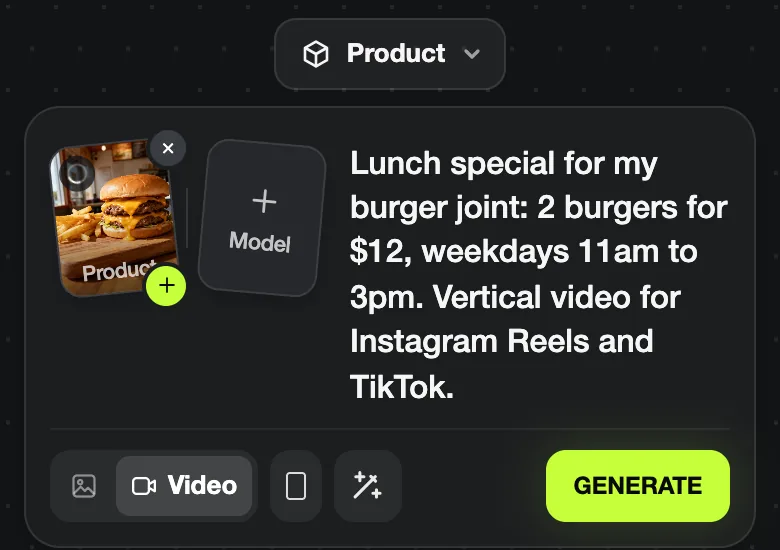
Common problem: Write numbers the way they should appear on screen. The plan copied our wording onto the closing card, so “$12” and “12 dollars” lead to different end frames.
Step 2 of 4
Confirm the Promo offer video specs
Blurbly describes the dish (“I see a double cheeseburger with fries on a wooden board”), says the deal will be shown as readable text at the end, and runs its web research. For our food photo with an offer, the Video specs card picked Promo offer video, 15s, Portrait 9:16 and 720p.
Keep it unless you want a shorter cut, such as 10 seconds for Stories, and tap Confirm & start planning to continue.
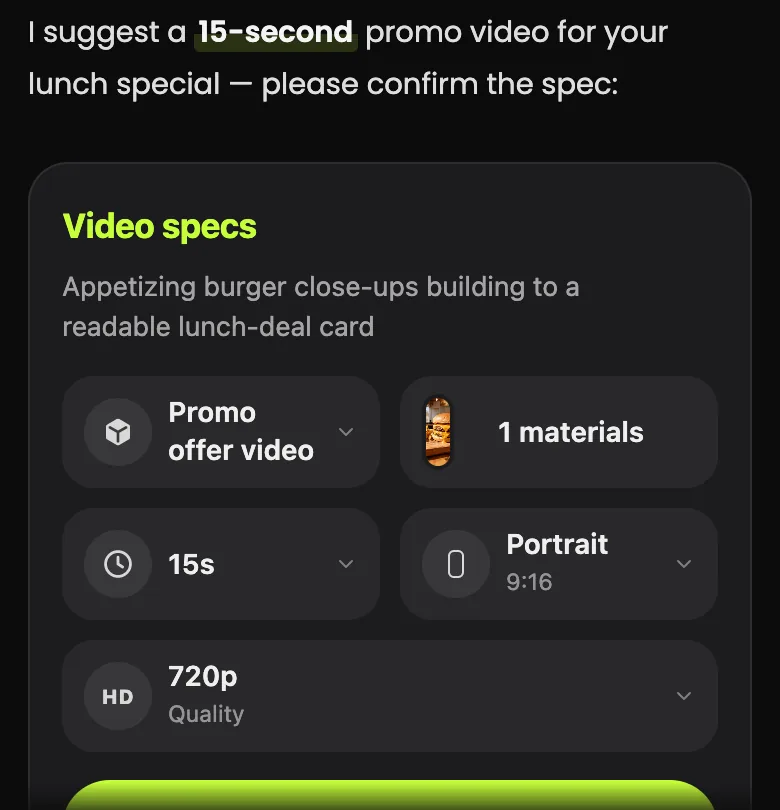
Common problem: The research card compares ads it found, often from big chains. That is background only; your plan uses your photo and your offer, not their branding.
Step 3 of 4
Check that the food stays your food
Our plan, “Two Burgers, Twelve Bucks, Three Hours Only”, had eight shots inside a burger joint: the board slid across the counter, patties pressed on the flat-top, cheddar melting, the bun pressed down, fries dropped into the oil, the board handed to a customer, and two closing shots with the deal card.
Look at the preview frames for your dish: the same bun, the same number of patties, the same sides. The cooking shots are generated, so they show a believable kitchen, not your kitchen.
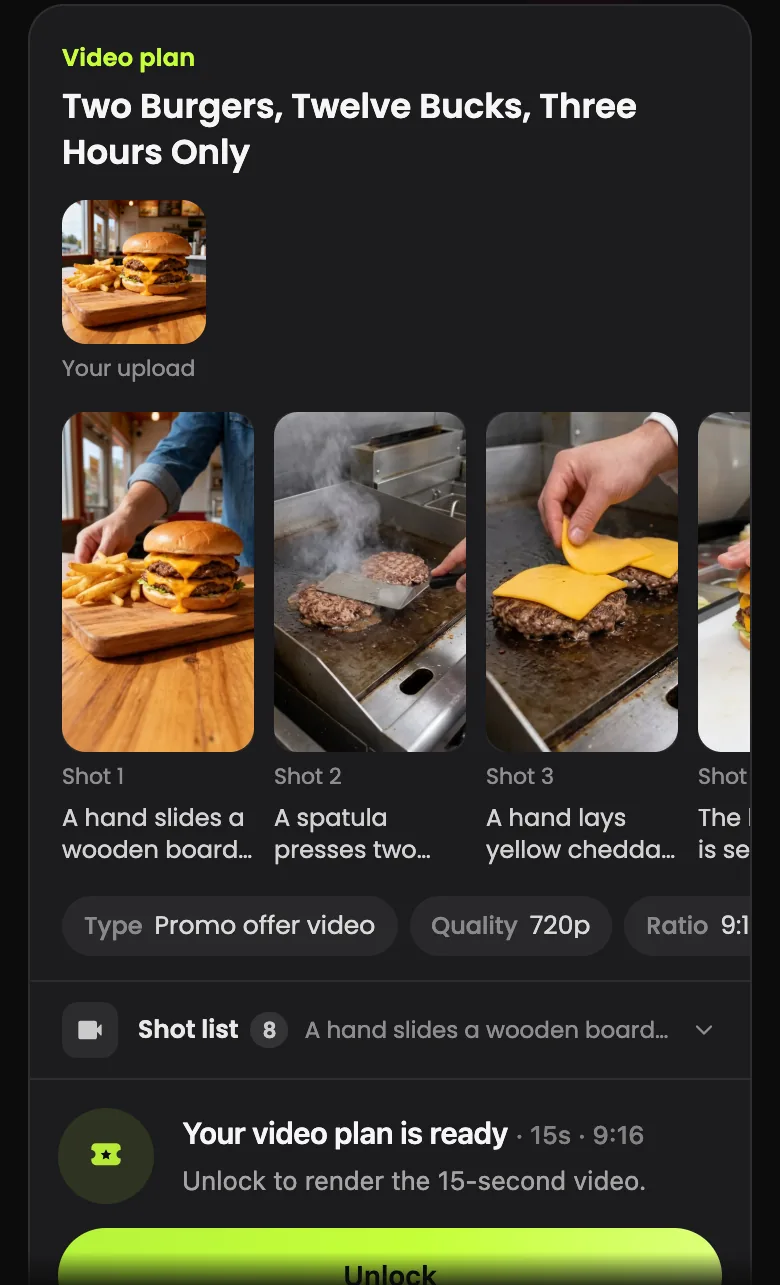
Common problem: If a frame shows a different dish, such as an extra patty or another bun, ask for the fix in the box under the plan, for example “keep exactly two patties and the bun from my photo”.
Step 4 of 4
Check the deal card and the shot list
Swipe the preview row to the end. Shots 7 and 8 put the offer on a card next to the food; ours read “2 BURGERS FOR $12” with “WEEKDAYS 11AM–3PM” underneath. Check every character: prices and times on generated cards can come out wrong.
Open Shot list for the timings and camera moves (0–2s fast push-in, 2–4s overhead crane down…). In a 15-second video each cooking moment lasts about two seconds, so one dish and one offer is plenty.
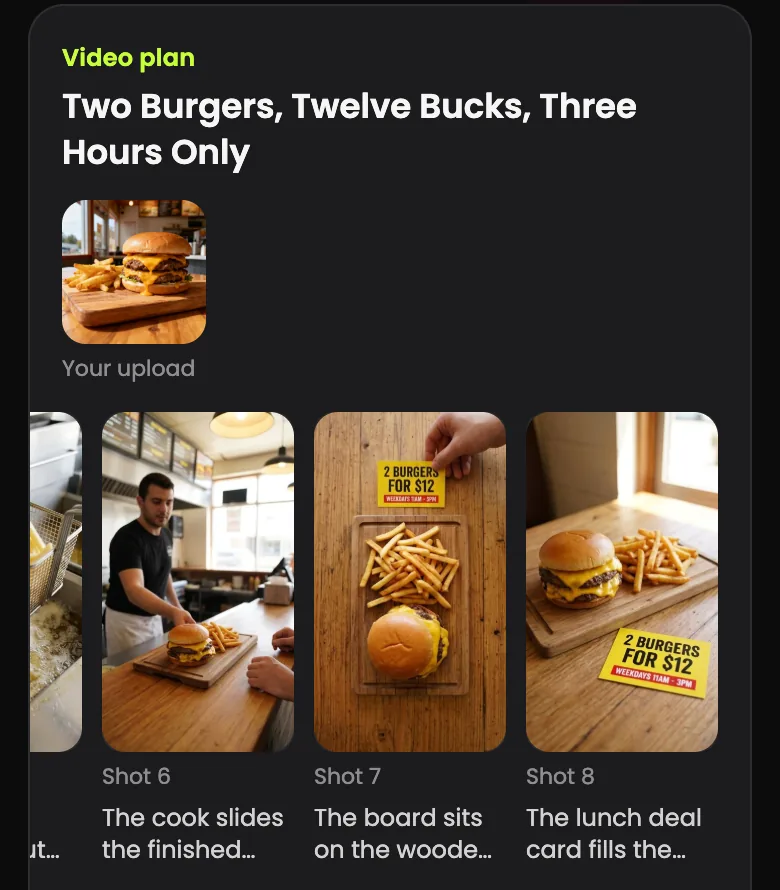
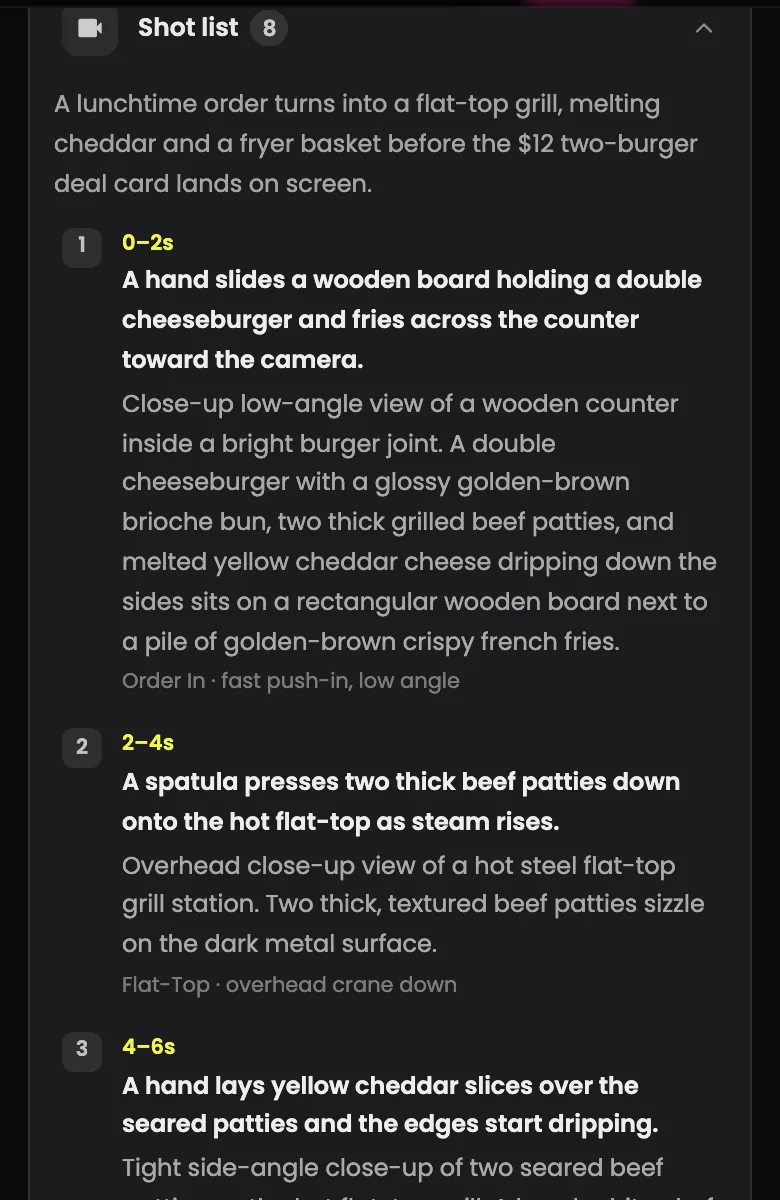
Common problem: Generated text is the most likely thing to be wrong. If the wording matters (prices, dates, allergens), add it yourself as a caption in your posting or editing app instead of relying on the card.
Where to post the finished video, and where not to
Tap Unlock to render the video. We stopped before that, so the clip below was made earlier from the same burger photo for our restaurant page.
Use the video for Instagram and Facebook Reels, TikTok, Stories and paid social ads. Do not upload it to your Google Business Profile or to delivery-app menus as a photo or video of your restaurant or food.
Those platforms ask for real photos of what you serve and where you serve it; see our guides to Google Business Profile photos, DoorDash menu photos and Uber Eats menu photos.
Tips for better results
- Shoot the dish close and slightly from above, in daylight or warm light. The first shot of our plan reused the angle and the board from the photo.
- One dish per video. A table of plates makes it unclear which item the deal is about.
- Put a time limit in the offer (“weekdays 11am to 3pm”, “this Friday only”). Our planner turned it into the headline “Three Hours Only”.
- Make two versions: the dish alone as a Product motion video and the dish with the deal as a Promo offer video, then keep posting the one that gets more saves.
- Seasonal menus and gift cards? See the holiday promo video maker and the restaurant examples.
Troubleshooting
- The specs card picked UGC with a creator
- That happens when the text asks for a person or a review, or someone is in the photo. If you only want the food, switch the type tile to Promo offer video or Product motion video before confirming.
- The deal card has a typo or the wrong price
- Type the exact wording in the box under the plan before paying, or add the price as your own caption when you post.
- “This image can’t be used. Please choose another one.”
- The automatic check turned the photo down. Try a plain shot of the dish by itself, as JPG, PNG, WebP, HEIC or GIF.
- Preview frames are still loading
- Previews are drawn after the plan. Wait for “Generating preview” to finish; the shot list is already complete if you want to read it first.