

Blurbly AI tutorial · about 5 minutes
How to choose the creator, reference clip, voice and music
The Resources panel on blurbly.ai, behind + Product, is where you choose the creator, a camera-move reference clip, the voice and the music. This page covers each row and where its pick shows up in the plan.
Five minutes and one product photo are enough. Our run paired an unbranded steel water bottle with the preset creator Marcus, the Gym floor clip, the voice Chris and the track Neon Rush.
Screenshots from the live site · checked on blurbly.ai
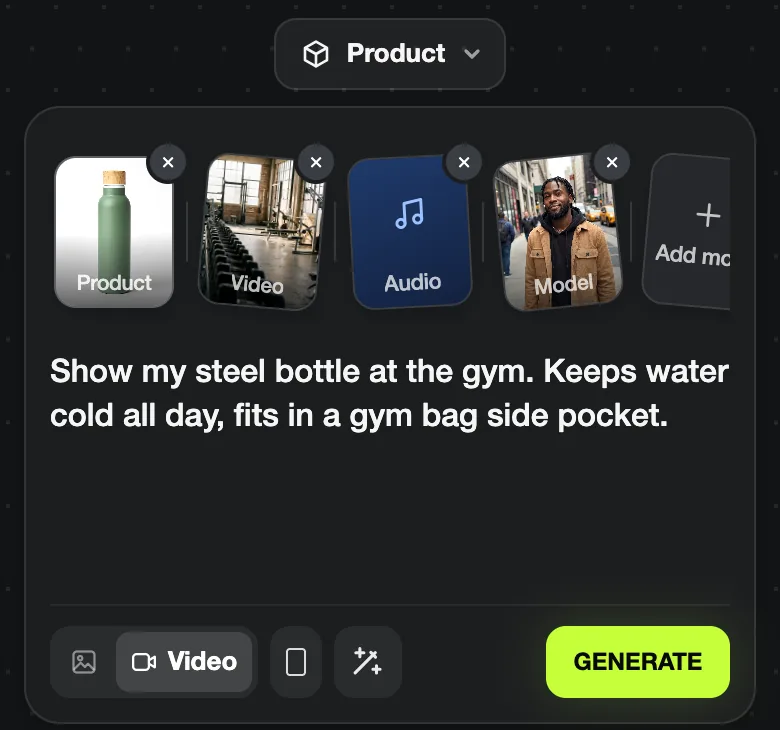
This is the same box the steps below walk through. Keep this tab open and follow along with your own product.
What you need
- A product photo. It is required for every video; the other picks are optional.
- An idea of the setting (a gym, a kitchen, a salon) so every pick points the same way.
- Sound on or headphones, to preview the voices and tracks.
Step 1 of 6
Open the Resources panel
Tap + Product on the create box. The Resources panel opens with Upload (Image · Video · Audio) at the top and your recent uploads next to it. Below are five rows: Product library, Model library, Video Library, Voiceover and Music.
Everything you tap gets a check mark, and the bottom button counts your picks, for example Continue (5). The Product library holds sample products for trying Blurbly without your own photo; for a real ad, upload yours.
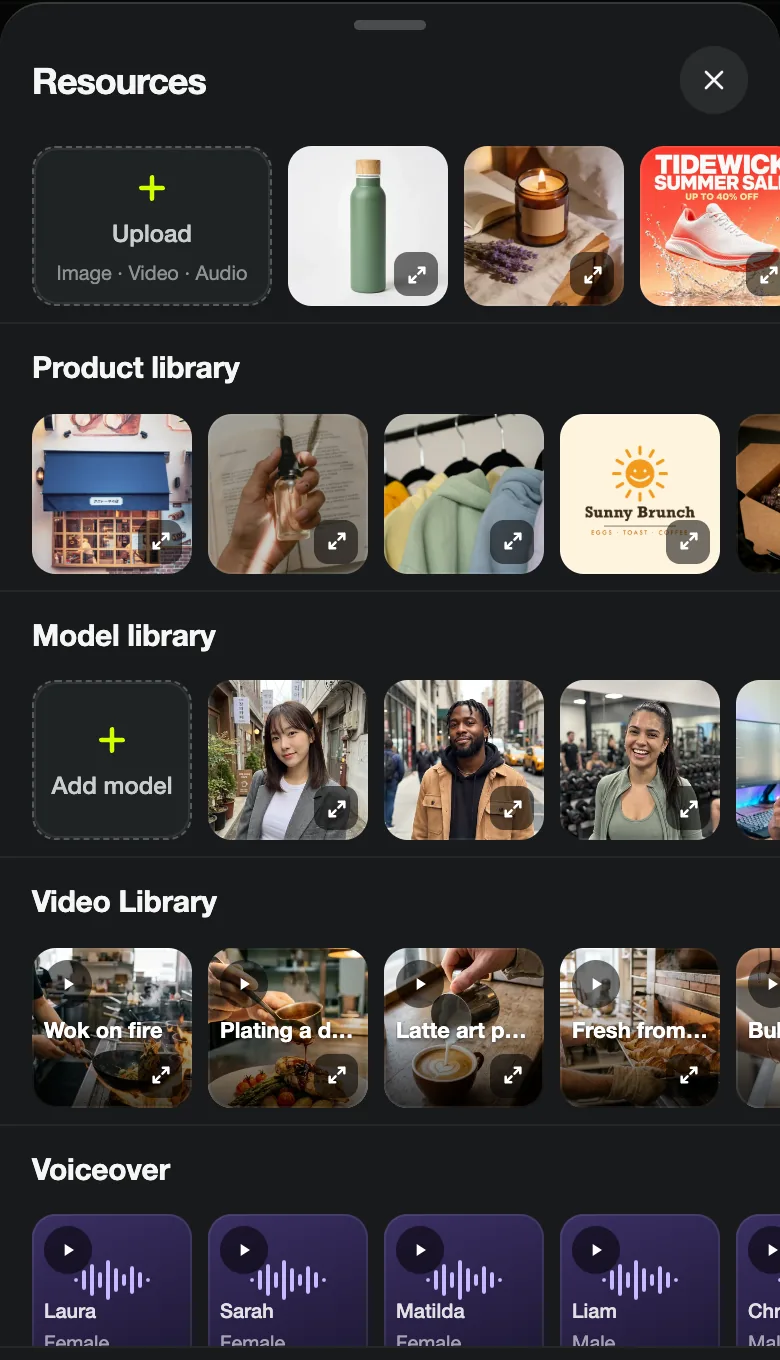
Common problem: If Upload only says Image and the Video Library and Music rows are missing, the panel opened before the page finished loading. Close it and open it again after a few seconds.
Step 2 of 6
Pick a creator from the Model library
The Model library row starts with Add model, for uploading a photo of a real person, followed by the preset creators: the same AI presenters as in the UGC pop-up (Yuna, Marcus, Camila, Kai and others). Tap the expand icon to see a full photo, and tap the face to select it.
Picking a creator turns the video into a creator video. On the specs card the type becomes UGC with a creator, and the materials tile counts the creator as an image.
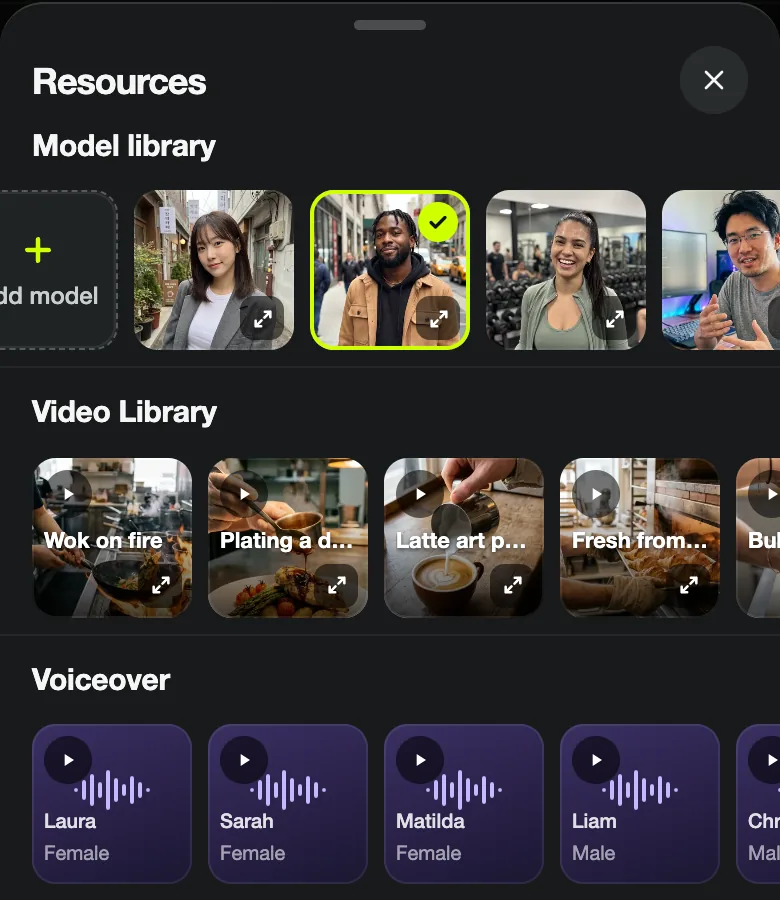
Common problem: A creator’s photo can steer where the video takes place. Marcus’s preset photo is a street portrait, yet our plan was set in a gym because both the text and the Gym floor clip said gym. Name the setting in your text.
Step 3 of 6
Choose a Video Library clip for camera movement
The Video Library has short scene clips grouped by business type, such as Wok on fire, Latte art pour, Haircut in salon, Unboxing, Gym floor and Home tour, plus plain studio and room backgrounds at the end. Tap the play button to watch one.
A clip is a reference for camera movement, pacing, setting and action. It is not pasted into your video, and its people and objects are not reused. It also does not count on the specs card: our four picks showed as 2 materials, the product and the creator.
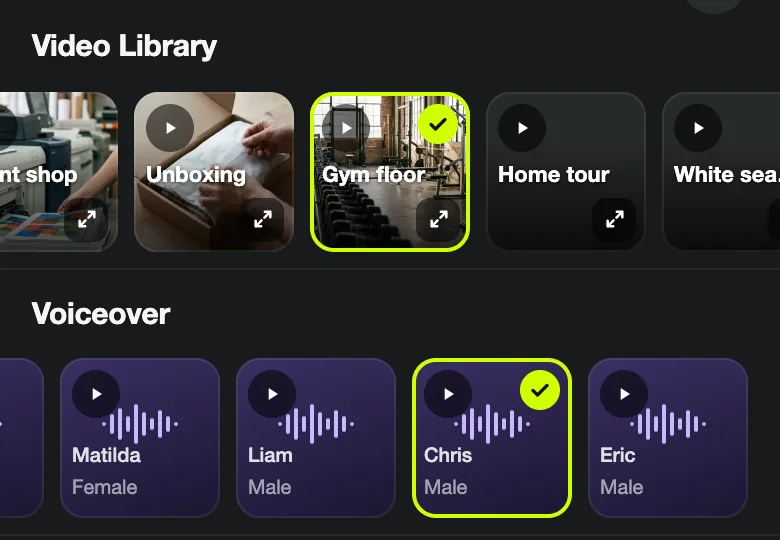
Common problem: Pick a clip from your product’s world. A kitchen clip under a skincare product pulls the plan towards a kitchen. If nothing fits, skip the row.
Step 4 of 6
Choose a voice-over
Voiceover has six voices: Laura (female, young and upbeat), Sarah (female, soft and reassuring), Matilda (female, warm and mature), Liam (male, young and punchy), Chris (male, casual, like a friend’s tip) and Eric (male, smooth and confident). Tap the play button on a card to hear it.
The voice you pick shows up on the specs card (ours read Chris · Male) and later on the Voice-over chip in the plan, which has a Change button.
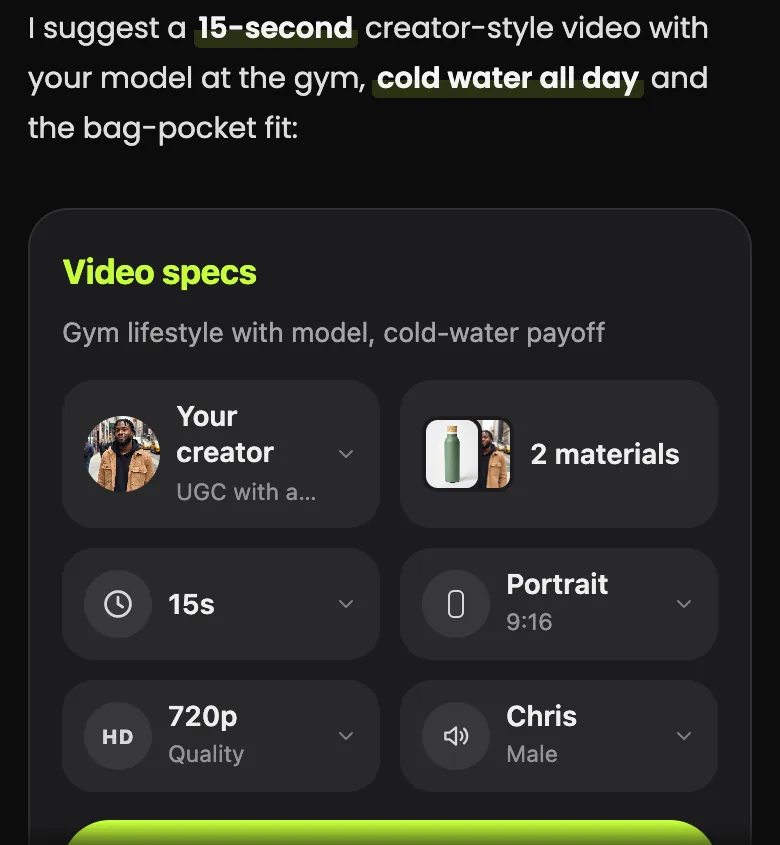
Common problem: Voice-over is offered for UGC with a creator and Story short. Product motion videos, promo offer videos and motion posters showed no voice tile in our runs; switch the type if you need narration.
Step 5 of 6
Pick a music track
Music lists Featured tracks by Blurbly Studio, each 45 seconds long, such as Pop Spark, Golden Morning and Neon Rush. Tap the play button to listen and tap the row to select it. The search box at the top, “Search songs or artists”, looks up other songs.
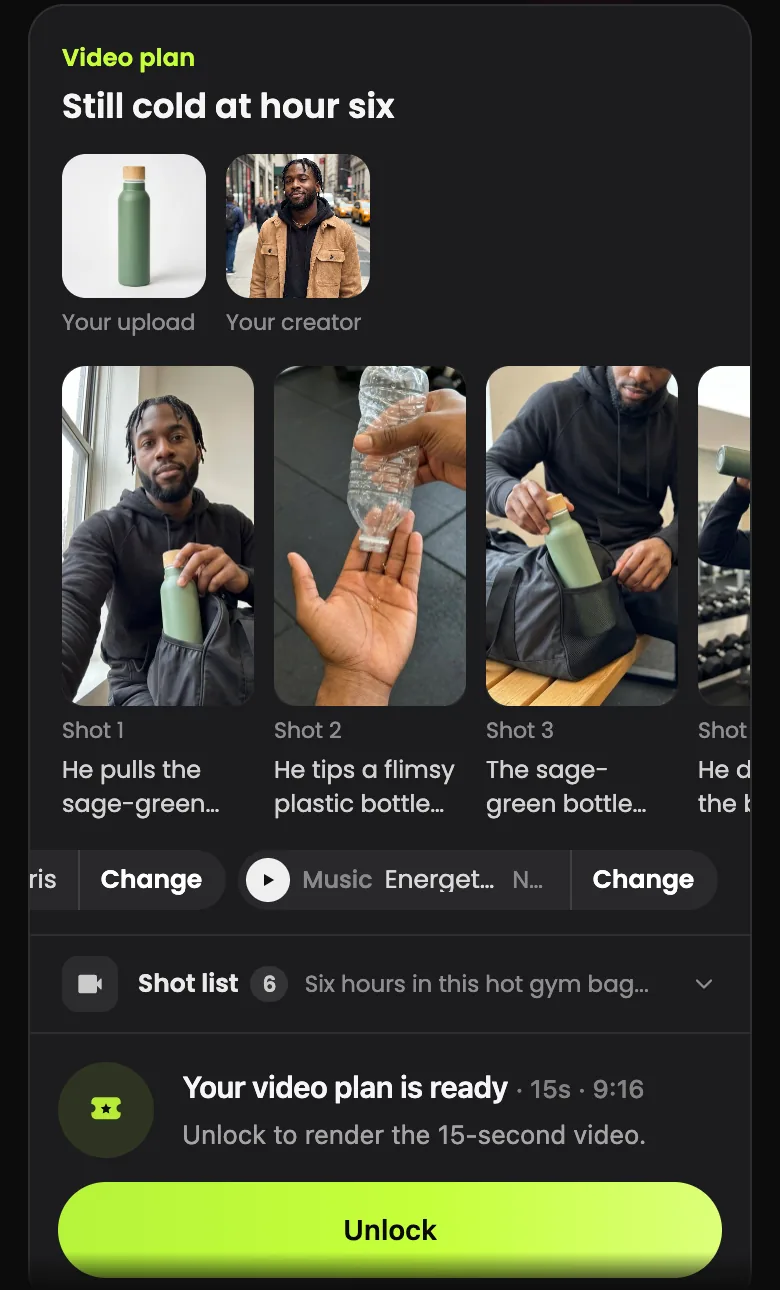
If you skip music, the plan picks a track by mood (Energetic or Chill in our runs) and shows it with a play button and a Change button.
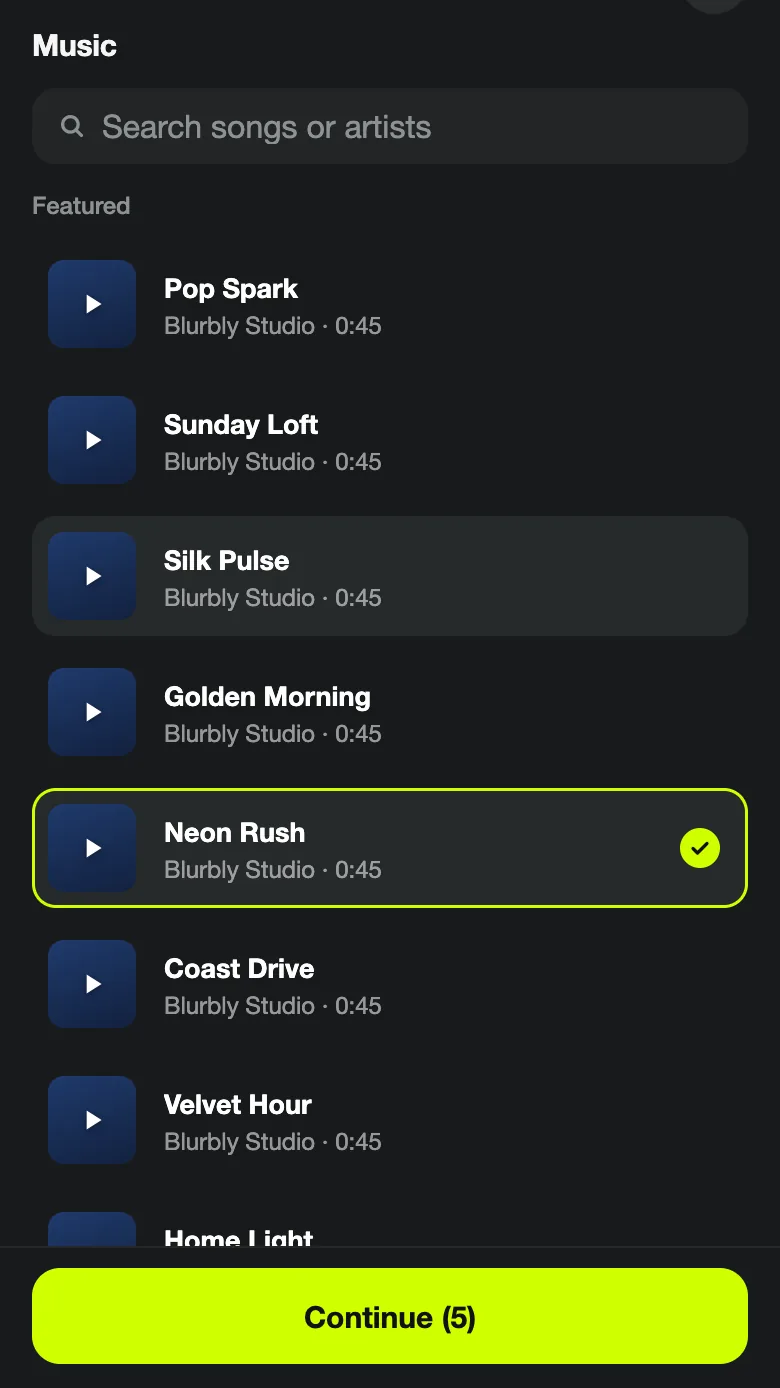
Common problem: For ads, the Blurbly Studio tracks are the safe choice. A song found through search may be a commercial recording; use it only if you have the right to put it in an ad.
Step 6 of 6
Continue, generate and check your picks in the plan
Tap Continue (5). The create box now shows a stack with a number on it; tap it to lay out your picks as cards (Product, Video, Audio, Model), each with an × to remove it. Write one sentence about the ad and tap GENERATE.
After the specs card and planning, the chips on the Video plan card confirm what was used. Ours read Type UGC with a creator, Voice-over Chris and Music Energetic · Neon Rush.mp3. Voice and music both have Change, so you can still swap them before paying.
Common problem: Picks stay in the create box until you remove them. Before starting a video for a different product, open the stack and remove the old creator, clip and track.
What a creator video with music looks like
This run was never rendered. For the finished look, here is the same idea from Blurbly’s sample library: a creator with a water bottle at the gym.
Tips for better results
- Make all four picks agree: a gym creator, the Gym floor clip, an energetic track and a punchy voice. Mixed signals produce mixed scenes.
- Match the voice to the creator and the product. A female voice over a male creator reads as a narrator rather than the person talking, and a soft voice like Sarah suits skincare better than sport.
- Use the play button on the Music chip in the plan to hear the track next to the shot list before you tap Unlock.
- Start with the photo to UGC ad tutorial if this is your first video.
Troubleshooting
- Continue is grey
- Nothing is selected yet. Tap at least one item so it shows a check mark; the button then shows the count.
- The specs card shows fewer materials than I picked
- Only images count: your product and the creator. Clips, voices and music are attached without being counted.
- “Couldn’t import this song. Try another one.”
- That search result could not be added. Pick another result or one of the Blurbly Studio tracks.
- “Only JPG, PNG, WebP, HEIC and GIF images are supported.”
- The file is in a format the panel does not take. Save a JPG or PNG copy and upload that instead.