

Blurbly AI tutorial · about 5 minutes
How to make a UGC video ad from one product photo
A creator-style (UGC) ad on blurbly.ai starts from one product photo: an AI presenter holds your product, uses it and says your selling points to camera.
Plan on five minutes, one clear product photo and a sentence on what the creator should say. Our run stops at the finished shot list, just before payment.
Screenshots from the live site · checked on blurbly.ai
This is the same box the steps below walk through. Keep this tab open and follow along with your own product.
What you need
- One clear photo of the product, ideally on a plain background: a bottle, a jar, a box. We used an AI-generated photo of an unbranded amber serum bottle.
- One or two selling points in plain words, the way a customer would say them, such as “sinks in fast, not sticky”.
- Optional: the audience or the moment, such as “busy mornings” or “after the gym”.
Step 1 of 5
Open the UGC pop-up, or use the create box
On your first visit to blurbly.ai, a pop-up titled “Real creators selling your product” opens a few seconds after the home page loads. It asks for the three things this tutorial needs: Product photo, Creator and What should they say?
Tap Upload product photo and pick your photo. It appears as a thumbnail with an Add button next to it for a second angle, and the big button at the bottom changes from Upload product photo to Start.
If the pop-up does not show, you can do the same in the create box on the home page: + Product for the photo, + Model for the creator and the text box for the line.
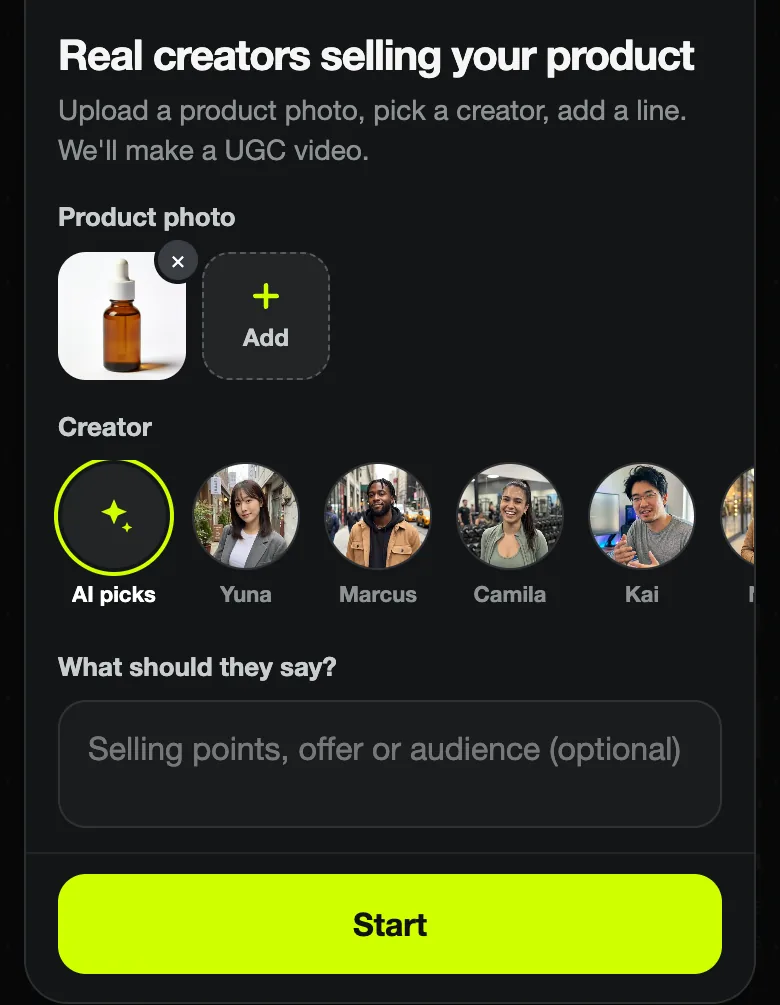
Common problem: Before a photo is added, the bottom button reads Upload product photo and opens your photo library, not the generator. A closed pop-up does not come back.
Step 2 of 5
Pick a creator and write the line
Under Creator, AI picks is the default: Blurbly chooses a presenter that suits the product. Swipe the row to see the preset creators (Yuna, Marcus, Camila, Kai and more) and tap one to use that face in every shot. We picked Camila.
In What should they say?, write the selling points or the offer in one or two short sentences. We wrote “Morning skincare for busy people. Say it sinks in fast and does not feel sticky.” Then tap Start.
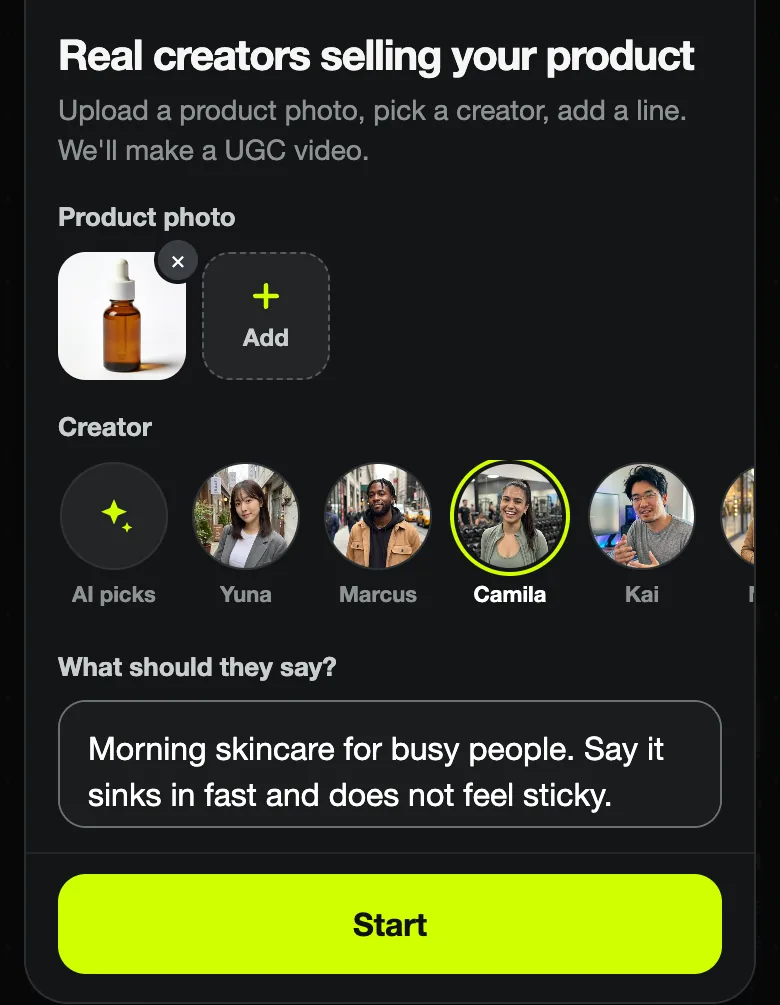
Common problem: Do not paste a finished script. Blurbly writes the spoken lines itself and fits them to the video length; give it the points to cover, not the exact words, or the timing suffers.
Step 3 of 5
Confirm the specs: UGC with a creator
You move to a task page. Blurbly describes the photo (“I see an amber dropper serum bottle, and you’ve shared a model to star in it”), runs its web research and shows the Video specs card. With a creator chosen, the type tile shows her face and UGC with a creator, and the materials tile counts 2: your product and the creator.
The Voice-over tile starts at No voice-over. Tap it to choose a narrator voice: Laura, Sarah, Matilda, Liam, Chris or Eric, each with a preview button. Adjust length or ratio if you need to, then tap Confirm & start planning.
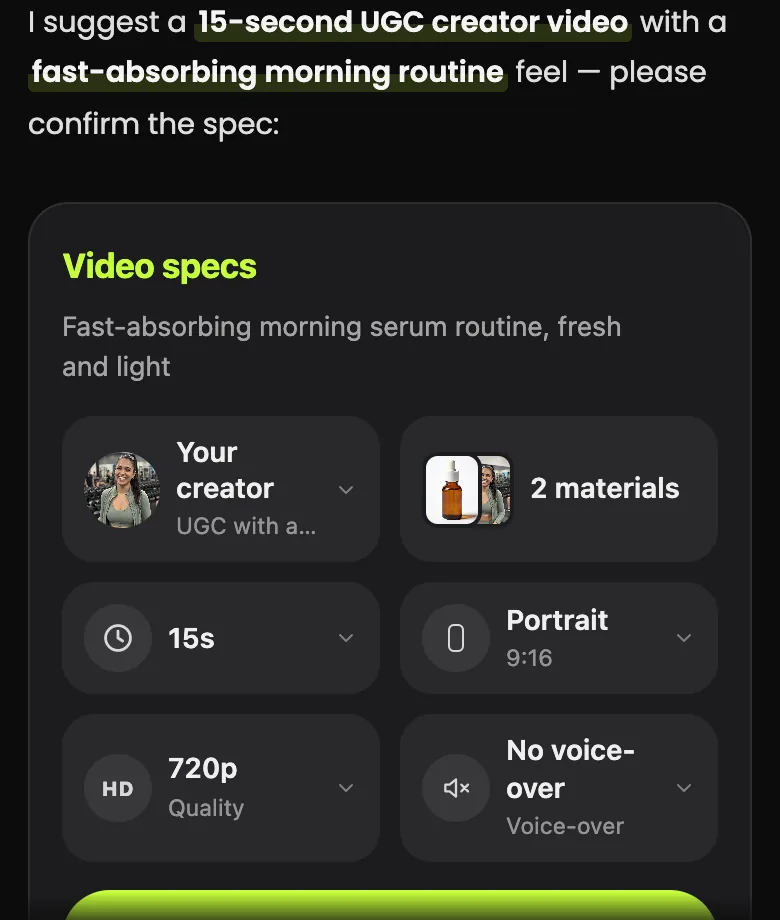
Common problem: If the type tile says Product motion video, Blurbly decided to show the product alone, which can happen when no creator was chosen and the request only asks for an “ad”. Switch the tile to UGC with a creator here.
Step 4 of 5
Check the creator and the product in every preview frame
About 20 seconds later the plan appears: a headline (ours, “Busy morning? This serum sinks in before your coffee brews”), a short description of the scenes, and the Video plan card with Your upload and Your creator side by side, then one preview frame per shot.
Use the frames to check two things: the product matches your photo (shape, dropper, colour), and the creator is the same person in every shot. In our six-shot plan Camila stayed consistent from the first frame to the last. The card ends with “Your video plan is ready · 15s · 9:16” and Unlock, the paid step that renders the video.
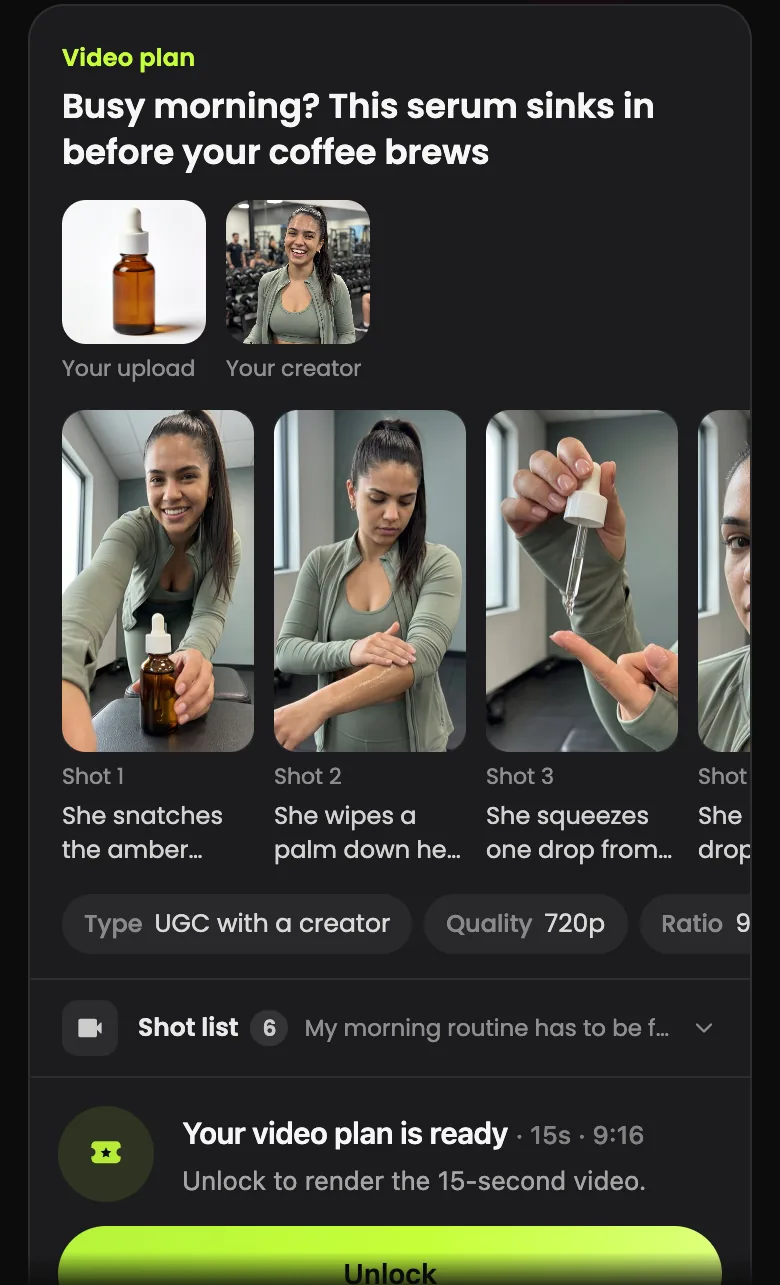
Common problem: The creator’s photo can steer the setting. Camila’s preset photo was taken in a gym, and our skincare plan also took place in a gym. If you want a bathroom or a kitchen, say so in your line.
Step 5 of 5
Read the spoken lines in the shot list
Open Shot list. For a creator video each shot shows its timing (0–3s, 3–5s…), the line said on camera in quotes, what the creator does, how the shot is framed and the camera move, such as “Arm’s-length selfie framing” or “quick handheld tilt down”.
Read the lines out loud. They should sound like a person talking, cover your points and claim nothing you cannot back up. Ours ran: “My morning routine has to be fast.” “I hate sticky creams.” “This serum sinks in instantly.” “Zero stickiness, seriously.” “Try it and see for yourself!”
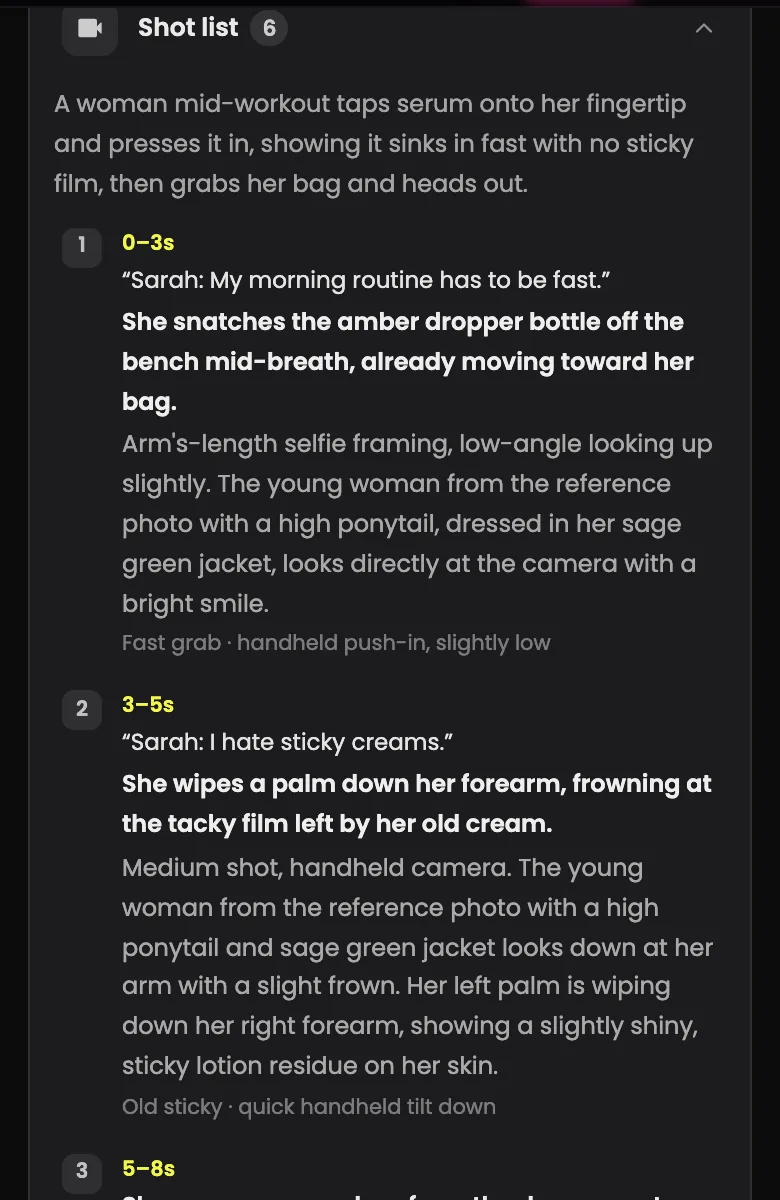
Common problem: Check claims before paying. If a line promises results you cannot prove, ask for a softer line in the box under the plan (“Anything to change?”). Ad platforms reject unsupported health and beauty claims.
What a finished creator video looks like
Nothing was rendered from this run, because we stopped before paying. For the format, here is a presenter with a fictional serum from Blurbly’s sample library.
Tips for better results
- Pick a creator who would plausibly use the product, and name the setting in your line. The plan builds the scenes around the creator’s photo unless you say otherwise.
- Write selling points the way a customer talks: “doesn’t feel sticky” works better than “non-comedogenic lightweight formula” when it has to be said out loud.
- Keep the product photo plain: one product, no hands, no other items in frame. Anything else in the photo can end up in the creator’s hands.
- Leave AI picks on for a first try if you are unsure; switch to a fixed preset creator when you want the same face across several ads.
Troubleshooting
- The pop-up does not appear
- It shows once per browser, a few seconds after the home page loads, and not if you have already started uploading or typing. Use + Product and + Model in the create box instead.
- “This image can’t be used. Please choose another one.”
- The automatic check rejected it. Retry with a different photo of the product on its own (JPG, PNG, WebP, HEIC or GIF).
- The creator looks different from shot to shot
- Choose a preset creator instead of AI picks, or upload a sharper, front-facing photo for your own presenter, then ask for the change in the box under the plan.
- A membership window opens on its own
- That is the payment screen. Closing it keeps the plan; the task stays in your history until you come back and tap Unlock.