

Blurbly AI tutorial · about 5 minutes
How to turn a product link into a video ad
You have a live product page and want a 15-second vertical ad from it. This is the whole run on blurbly.ai, from pasting the link to a shot list with preview frames.
Allow about five minutes. Bring the page URL and one clear photo of the product; the link alone will not start a plan.
Screenshots from the live site · checked on blurbly.ai
This is the same box the steps below walk through. Keep this tab open and follow along with your own product.
What you need
- The public URL of one product page, not a collection or home page.
- One photo of the product, ideally the main image from that page.
- One sentence about who the ad is for or how it should end, for example “for hikers and gym-goers, end with the price”.
Step 1 of 7
Add one product photo
Open blurbly.ai and tap the + Product card in the create box. In the Resources panel, tap Upload and choose your product photo.
The photo appears at the top of the panel with a check mark; tap Continue (1). While the photo is checked, its thumbnail says Processing. Wait for it to finish.
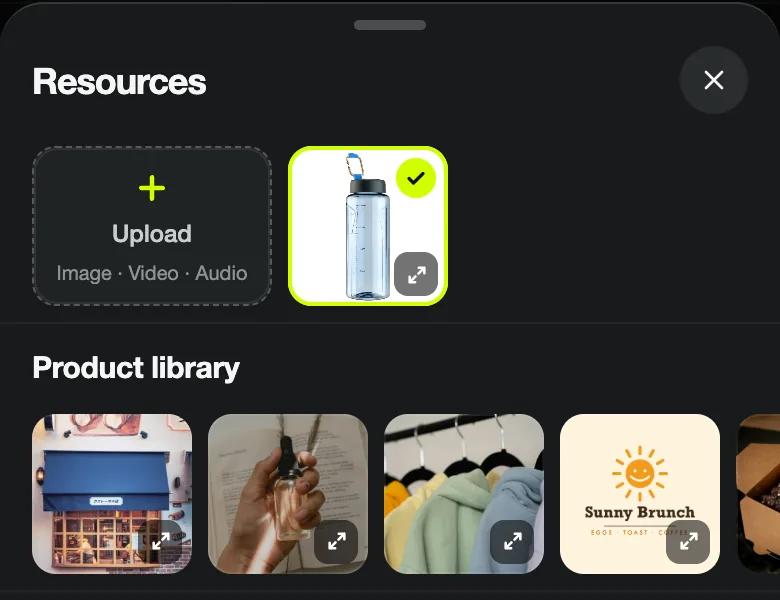
Common problem: A link on its own leaves GENERATE grey. Save the main image from your product page and upload it; the page details still arrive through the link in step 5.
Step 2 of 7
Paste the product link and one line of direction
Check that Video is selected below the box. Paste the product page URL into the text box and add one sentence: who the ad is for and what the last shot should show.
We used a public demo store page for a water bottle and wrote “15-second video ad for hikers and gym-goers, end with the price”. When the photo is ready, GENERATE turns lime green.
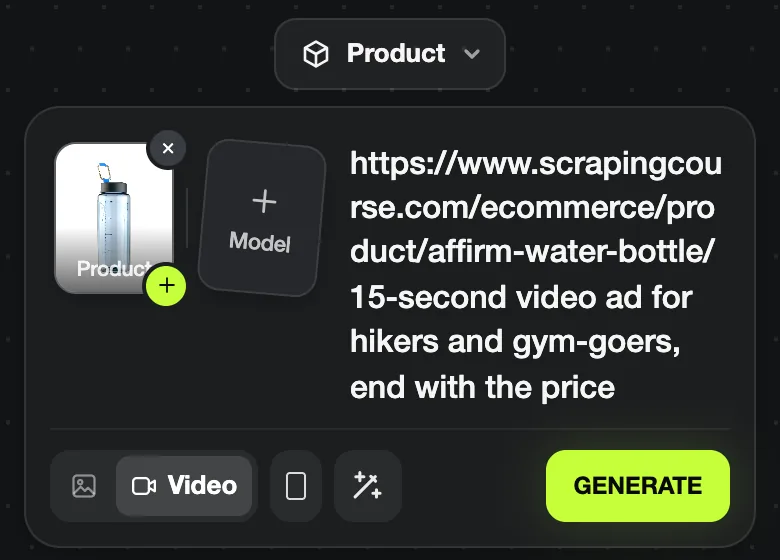
Common problem: Link the exact product, not a category page. If it has several colours, upload a photo of the one you advertise: the video is built from your photo, the page supplies the name, price and selling points.
Step 3 of 7
Let Blurbly read the photo and research the category
Tap GENERATE. On the task page Blurbly first says what it sees: “I see a light blue semi-transparent water bottle with a black cap and a carabiner clip.”
Then a research card runs (“Searching the web for the best creative plan…”). It scans TikTok, Instagram, YouTube Shorts, X, Pinterest and Amazon for similar short videos, compares brands and usage scenes, and ends with “Web research done”, about 20 seconds in our run.
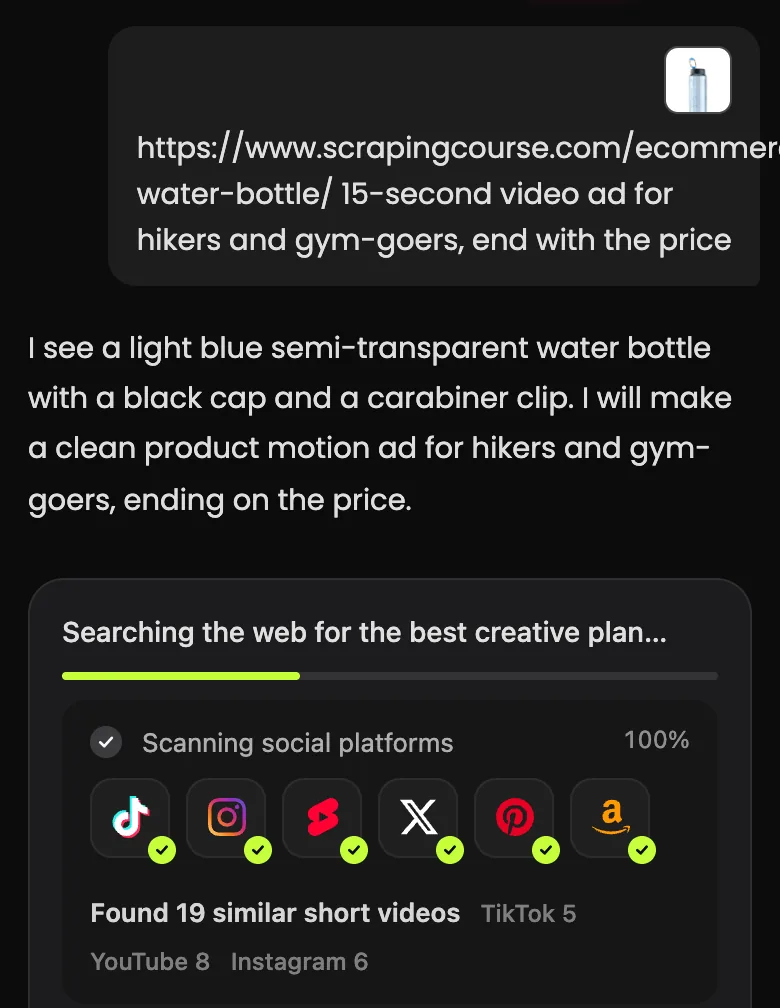
Common problem: Read that first sentence. If it gets the product, colour or material wrong, replace the photo now; every later step builds on that description.
Step 4 of 7
Check the Video specs card
Next comes a Video specs card: a one-line idea and tiles for type, materials, length, ratio and quality. Tap a tile to change it. Length is a slider with 5, 10, 15 and 30 seconds; the ratio starts at Portrait 9:16 for Reels, TikTok and Shorts.
The type decides what is on screen: Product motion video shows only the product, UGC with a creator puts a person on camera, Story short tells a short story. Then tap Confirm & start planning.
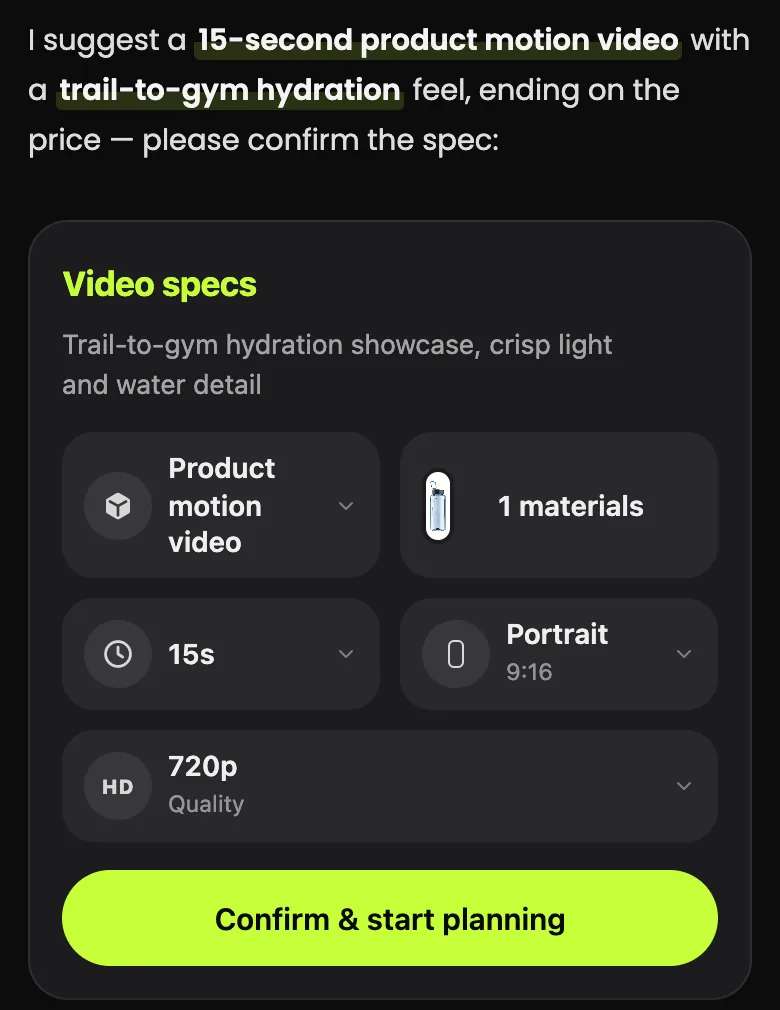
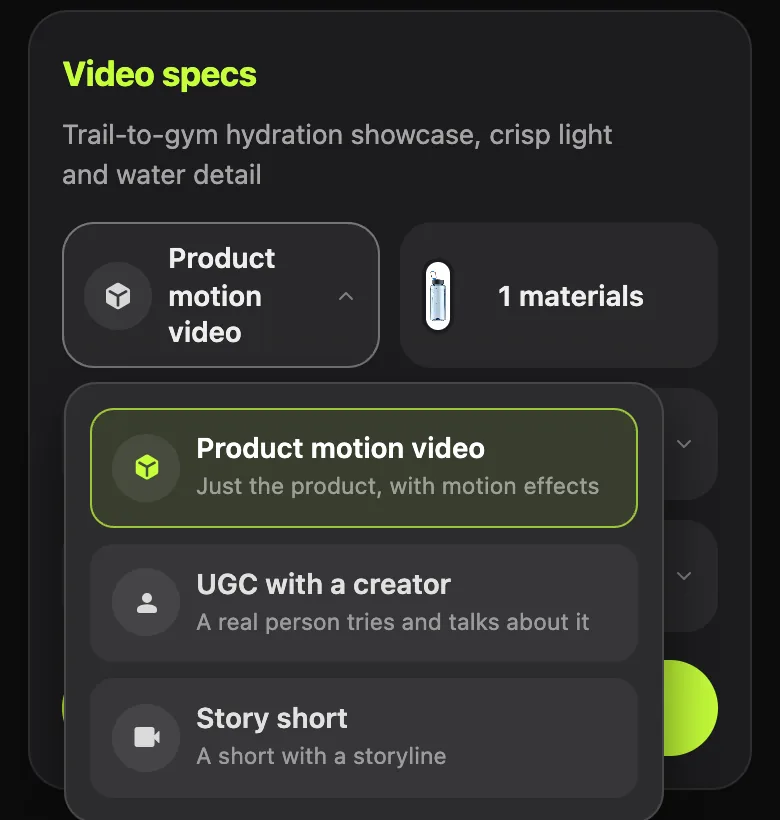
Common problem: You can also type a change (“Want different specs? e.g. make it 30s”). Settle the length here: a 30-second video costs more to render than a 15-second one.
Step 5 of 7
Wait while it reads the link and writes the plan
After you confirm, a status line shows “Reading the website you linked…”. This is when the page is opened and its product name, price and selling points are added to the brief.
A progress card then moves through Understand the request, Write the script, Plan each frame and Finalizing the plan. Ours finished about 20 seconds after confirming.
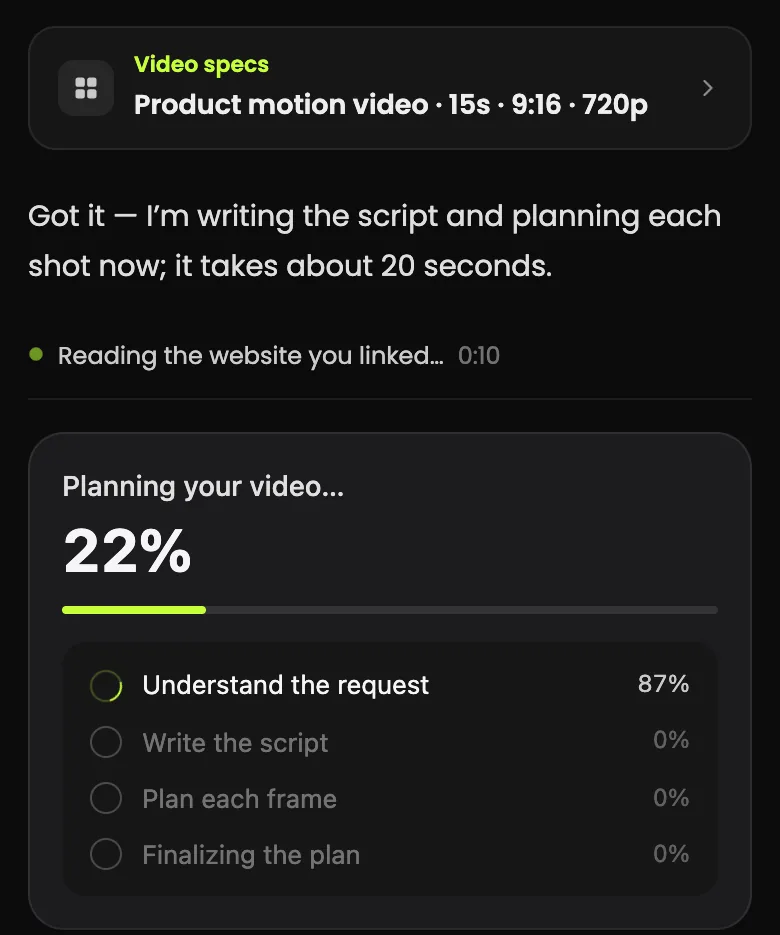
Common problem: If the page cannot be opened, for example behind a login, the plan is built from your photo and sentence alone. Look for the name and price in the next step.
Step 6 of 7
Read the plan and the shot list
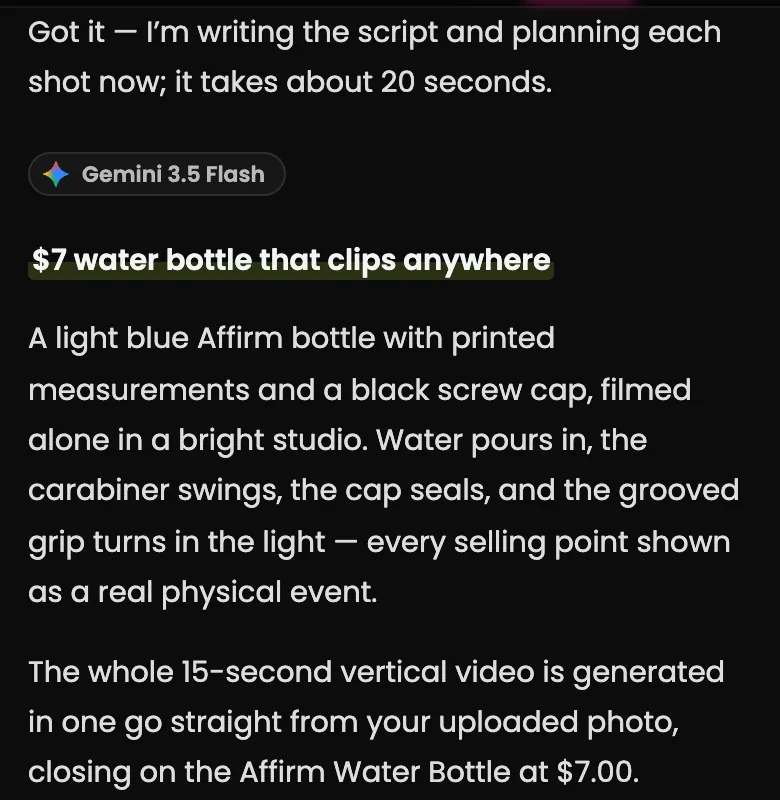
The plan opens with a headline and a short description. Ours named the product and ended on its price, both taken from the page: “closing on the Affirm Water Bottle at $7.00”.
The Video plan card shows your upload, a preview frame per shot and chips for type, quality, ratio, voice-over and music (with play and Change). Open Shot list for each shot’s timing, action, description and camera move.
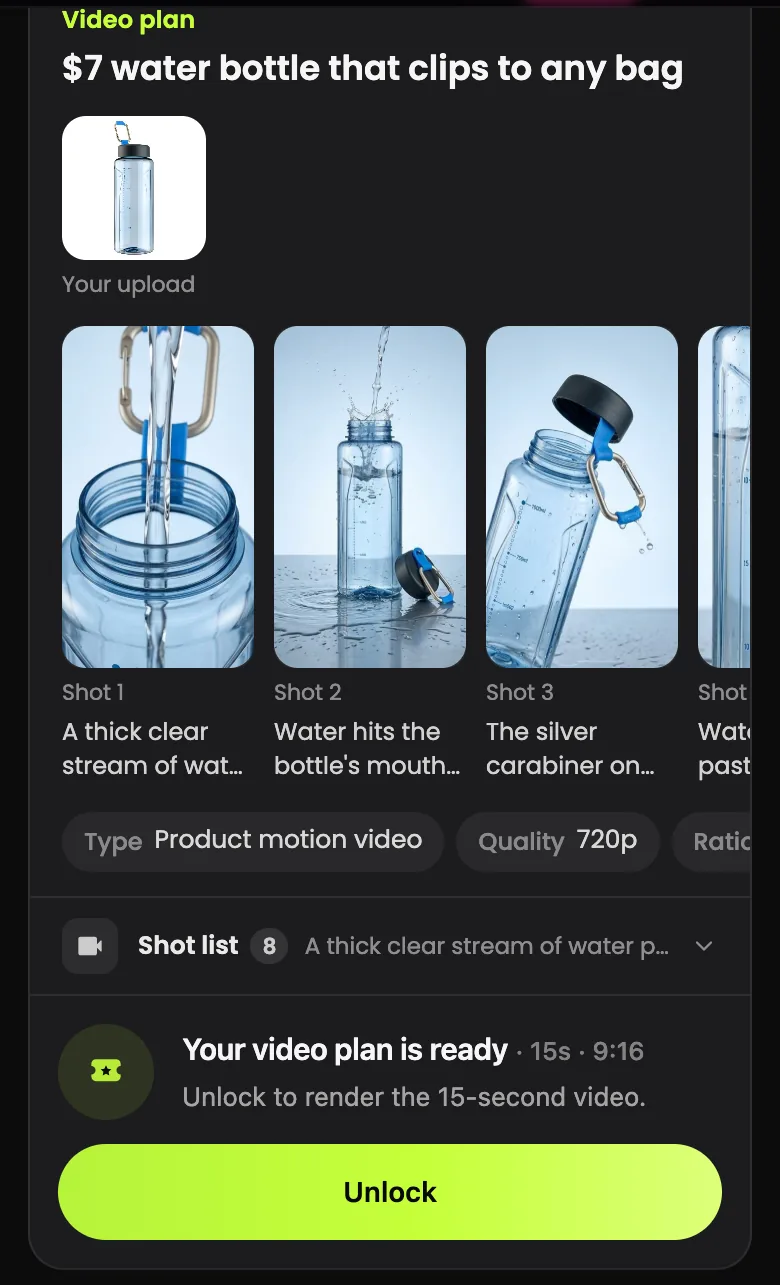
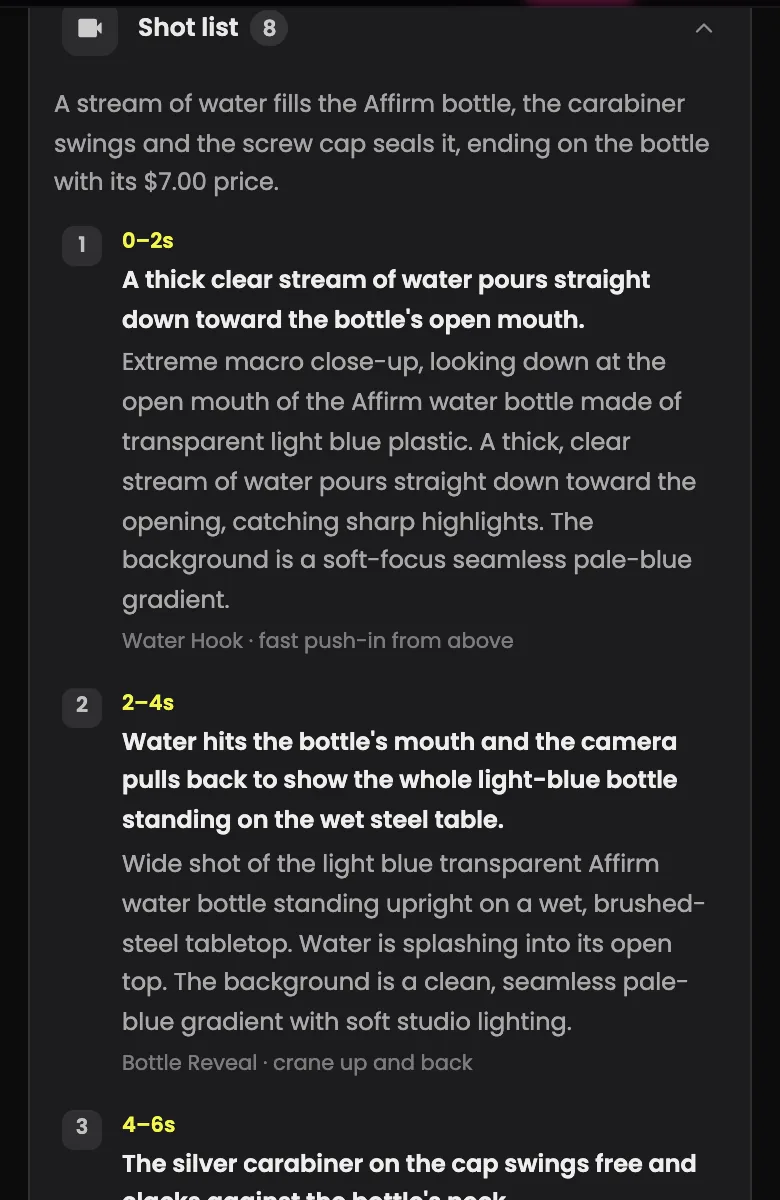
Common problem: Preview frames are drafts for catching a wrong shape or setting before paying. If one shows your product incorrectly, type the fix in the box below the plan (“Anything to change?”) before you tap Unlock.
Step 7 of 7
Unlock to render the video
The card ends with “Your video plan is ready · 15s · 9:16” and an Unlock button. Unlock is the paid step; the video is rendered after it.
On a computer the task opens with your earlier tasks in the left sidebar, so you can return to a plan later.
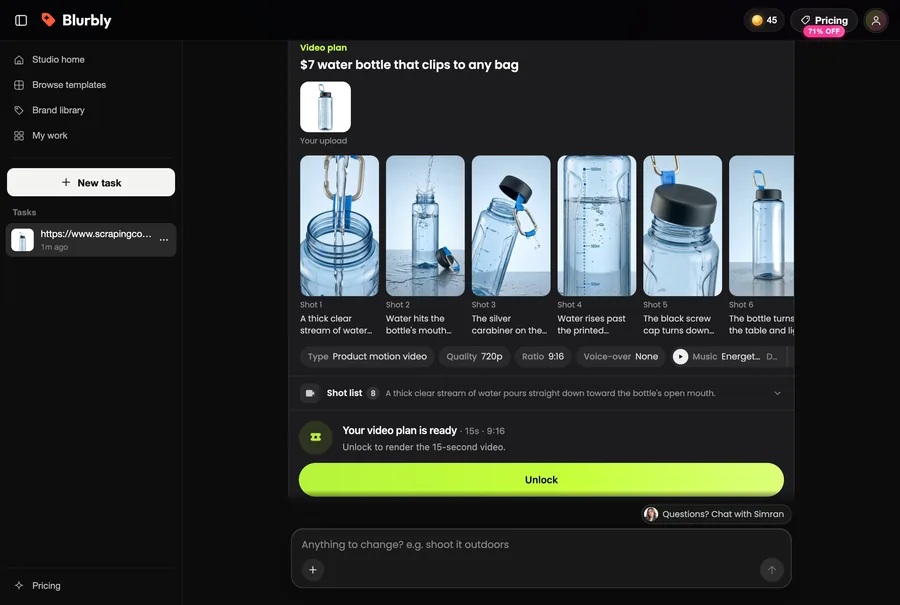
Common problem: If a membership window opens by itself, that is the payment screen. Closing it keeps the plan in the task.
What the finished video looks like
Our run ended at the Unlock button, so nothing was rendered from it. The clip below, from Blurbly’s sample library, is the kind of product-only motion ad this plan describes.
Tips for better results
- Upload your cleanest photo: the whole product, sharp, no hand over the label.
- If the page shows an old and a sale price, say which one to use. The plan quotes the price it reads.
- Start with 15 seconds; a short plan is quicker to check shot by shot.
- For a person on camera, switch the type to UGC with a creator on the specs card, or pick a model before you tap GENERATE (see choosing a creator, voice and music).
Troubleshooting
- GENERATE is grey
- No product photo is attached yet, or it is still Processing. Add one through + Product and wait.
- “This image can’t be used. Please choose another one.”
- The photo failed the automatic check. Try another, plainer product photo (JPG, PNG, WebP, HEIC or GIF).
- The plan does not mention the product name or price
- The page could not be read, usually because of a login or bot check. Type the name and price into your sentence instead.
- “Your previous request is still being prepared…”
- Blurbly runs one request per account at a time. Wait for the current plan to finish, then start another.