

Free tool
TikTok safe zone checker
See what the TikTok ad interface, Instagram Reels and YouTube Shorts cover on your 9:16 video before you pay to find out. It runs in your browser; nothing is uploaded.
- Top bar: Following / For You, LIVE, search 1080 × 130 px
- Button rail: profile, like, comment, save, share 140 × 1000 px
- Caption, Sponsored label, CTA button, music 1080 × 440 px
- Edge margin 60 × 1350 px
- Safe zone 880 × 1350 px from x 60, y 130
Approximate, not official: based on TikTok in-feed ad public guidance and the app interface as observed in 2026.
Generate a 9:16 ad that fits the safe zone in BlurblySafe zone sizes for TikTok, Reels and Shorts
All numbers are on a 1080 × 1920 px frame. Top and bottom are the height covered; right is the width of the button rail; left is a small edge margin.
| Platform | Top | Bottom | Right rail | Left | Safe area |
|---|---|---|---|---|---|
| TikTok in-feed ad | 130 px | 440 px | 140 px | 60 px | 880 × 1350 px at x 60, y 130 |
| Instagram Reels | 270 px | 670 px | 130 px | 65 px | 885 × 980 px at x 65, y 270 |
| YouTube Shorts | 240 px | 480 px | 130 px | 48 px | 902 × 1200 px at x 48, y 240 |
Approximate values based on each platform’s public 2026 guidance and observed app interfaces — not official exact measurements. UI shifts with app version, device, language and ad format; always confirm in the platform’s ad preview.
Plan the layout before you edit
The safe zone is easier to design for than to fix after export. Before writing any on-screen text, decide where three things will live: the hook line in the first second, the subtitles, and the end card with the product and the offer. On a 1080 × 1920 frame, the area that clears TikTok, Reels and Shorts together runs roughly from x 65 to 940 and from y 270 to 1250. That is a good deal smaller than the full frame.
The bottom limit is the one that catches people. Reels covers the most at the bottom, so subtitles left where many editors place them by default end up under the username and caption. Set them just above y 1250, keep each one to two short lines, and check the frame where the longest line appears.
The product needs the same care as the text. A bottle placed in the lower right sits under the button rail on TikTok and Shorts, and a hand demo low in the frame disappears behind the caption. Frame the product centred and slightly above the middle, which also leaves room for a subtitle beneath it.
Say you’re cutting a 15-second ad for a phone case. The hook text (“drop-tested on concrete”) goes in the upper middle, around y 400. The case fills the centre of the frame during the demo. The price card on the end screen sits centred above y 1250 instead of in the corner where a sticker would usually go. Run that end card through the checker, since it’s the frame with the most text.
These zones are approximations. Platforms move their interface between app versions, languages and ad formats, so use the checker and the template while editing, then confirm in the ad manager’s preview before you spend.
Three common safe zone failures and how to fix them
- Captions hidden behind the CTA
- Burned-in subtitles usually sit in the bottom fifth of the frame, which is exactly where TikTok puts the caption, Sponsored label and CTA button, and where Reels puts the username and audio line. Move subtitles up to roughly two-thirds of the way down (around y 1100–1250 on a 1080 × 1920 frame) and keep them to two short lines.
- Price covered by the button rail
- A price tag or “50% off” badge on the right edge lands under the like, comment and share icons. Keep offers left of x 940 and away from the middle-right of the frame; centred or left-aligned price cards survive on all three platforms.
- Logo cut by the top bar
- A logo in the top corner competes with the For You tabs on TikTok and the camera icon on Reels. Drop it below y 270, or show the brand in the product shot and the end card instead of a permanent corner bug.
Building the creative from product photos? Size them first with the free product image resizer (it has a 1080 × 1920 Story/Reels preset), and check the platform rules in the Meta and TikTok ad policy guides.
How to check a TikTok ad for the safe zone
Add your export
Choose the final 9:16 video or a still of the busiest frame, the one with the most text on screen.
Switch platforms
Flip between TikTok, Reels and Shorts. Anything under red is likely to be covered; keep text and prices inside the dashed green box.
Share or fix
Download the marked-up PNG to send to your editor, or grab the blank template to put on the top track while you edit.
Make a 9:16 product ad that fits
Describe the ad or upload a product photo. Blurbly generates vertical UGC-style and product videos; drop the result into the checker above before it goes live.
Vertical product ads made with Blurbly
Short 9:16 videos generated for fictional, unbranded products.
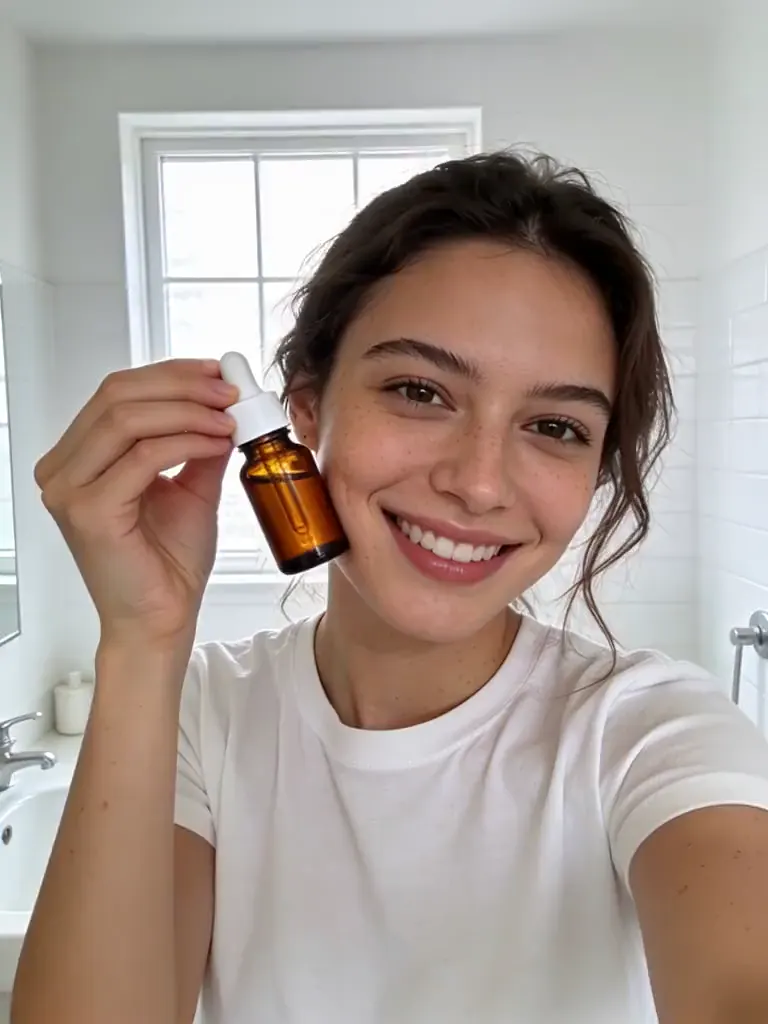

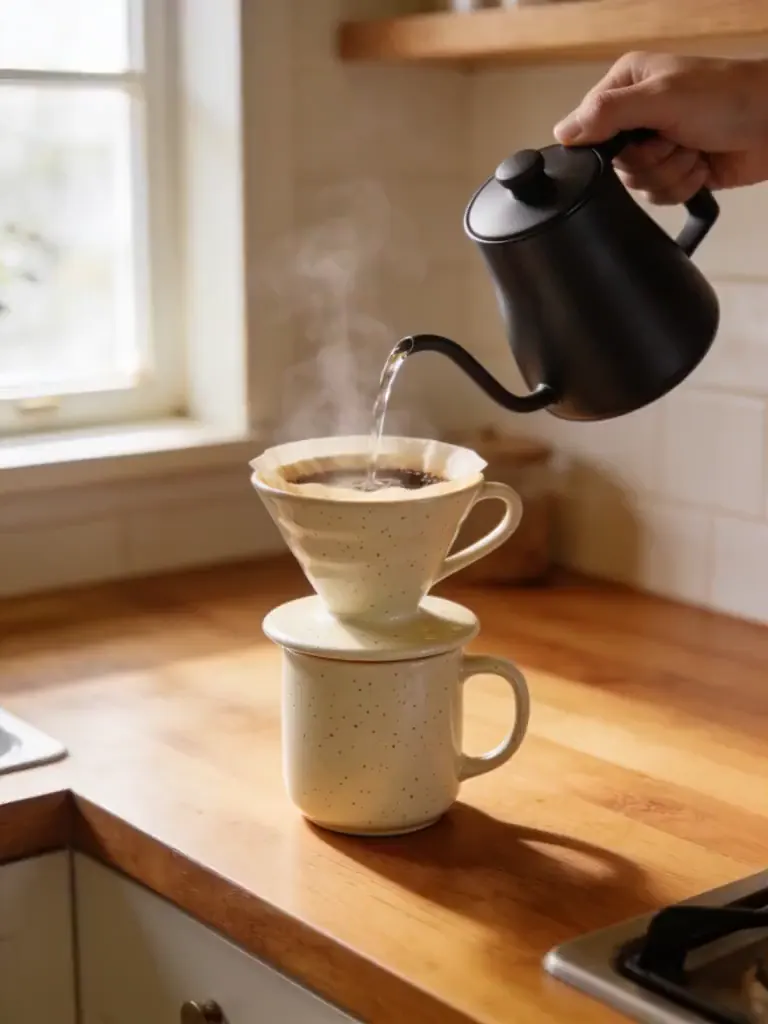
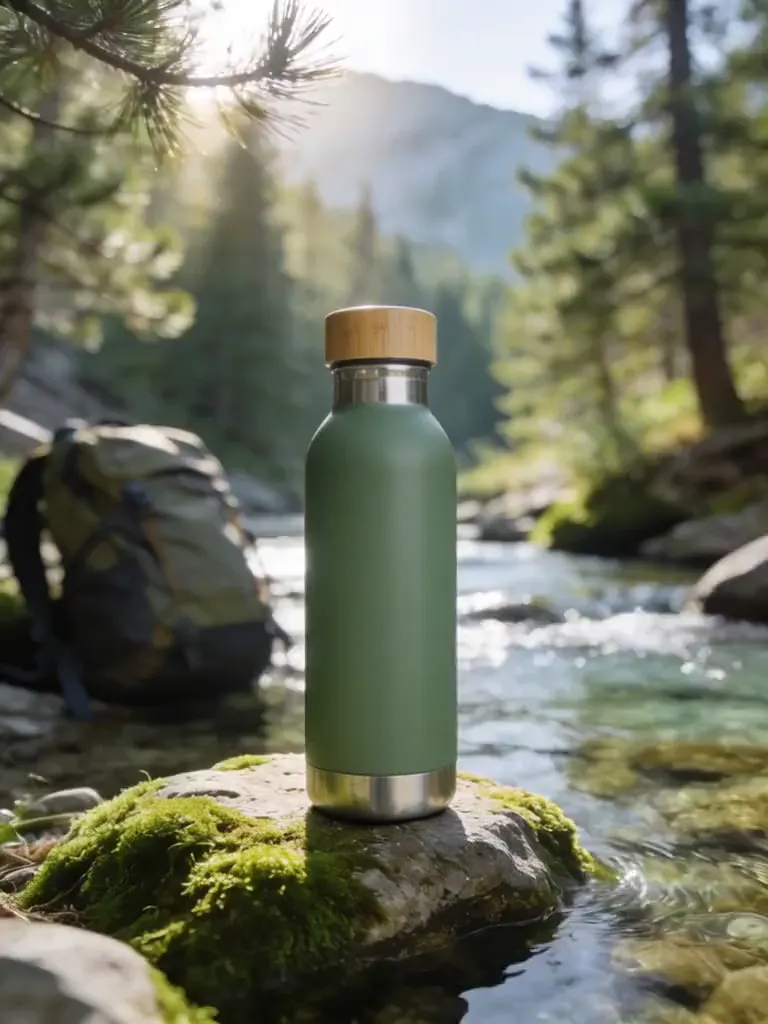


All examples were generated with AI from fictional, unbranded products. No real brand is shown.
Frequently asked questions
What is the TikTok safe zone?
It is the part of a 9:16 video that the TikTok interface does not cover. On an in-feed ad the caption, Sponsored label and CTA button sit over the bottom of the frame, the like/comment/share buttons run down the right edge, and the For You tabs cross the top. Text, prices and logos placed outside the safe zone get hidden.
Are these the official TikTok safe zone measurements?
No. They are approximations based on each platform’s public 2026 guidance and the app interfaces as we observed them. Platforms move UI between app versions, phone sizes, languages and ad formats, so leave extra margin and check a real preview in the ad manager before you spend.
Is my video uploaded?
No. The file is opened in your browser and the overlay is drawn on top locally. The preview PNG and the template are created on your device.
Does one safe zone work for TikTok, Reels and Shorts?
Mostly. Keep key text inside the overlap of all three, roughly x 65–940 and y 270–1250 on a 1080 × 1920 frame, and it clears every platform here. Instagram Reels has the deepest bottom area, so it sets the lower limit.
My video is not 9:16. What happens?
The checker shows it letterboxed and tells you so. In the feed, platforms crop or add bars to non-vertical video, which moves everything. Export at 1080 × 1920 for an accurate check.
How do I use the template in my editor?
Download the transparent 1080 × 1920 PNG, put it on the top track in CapCut, Premiere, Final Cut or Canva, and keep text inside the dashed green box. Hide or delete the layer before you export.
Make the vertical ad, then check it here
Generate vertical product video ads from one product photo, then run the export through the safe zone checker before you launch.
Open the studio