

Blurbly AI tutorial · about 3 minutes
How to turn a poster or flyer into a motion poster video
A sale poster that already works in print or on your feed can become a short vertical video on blurbly.ai without a redesign, either as a 5-second Motion poster of the artwork itself or as a longer promo built around your offer.
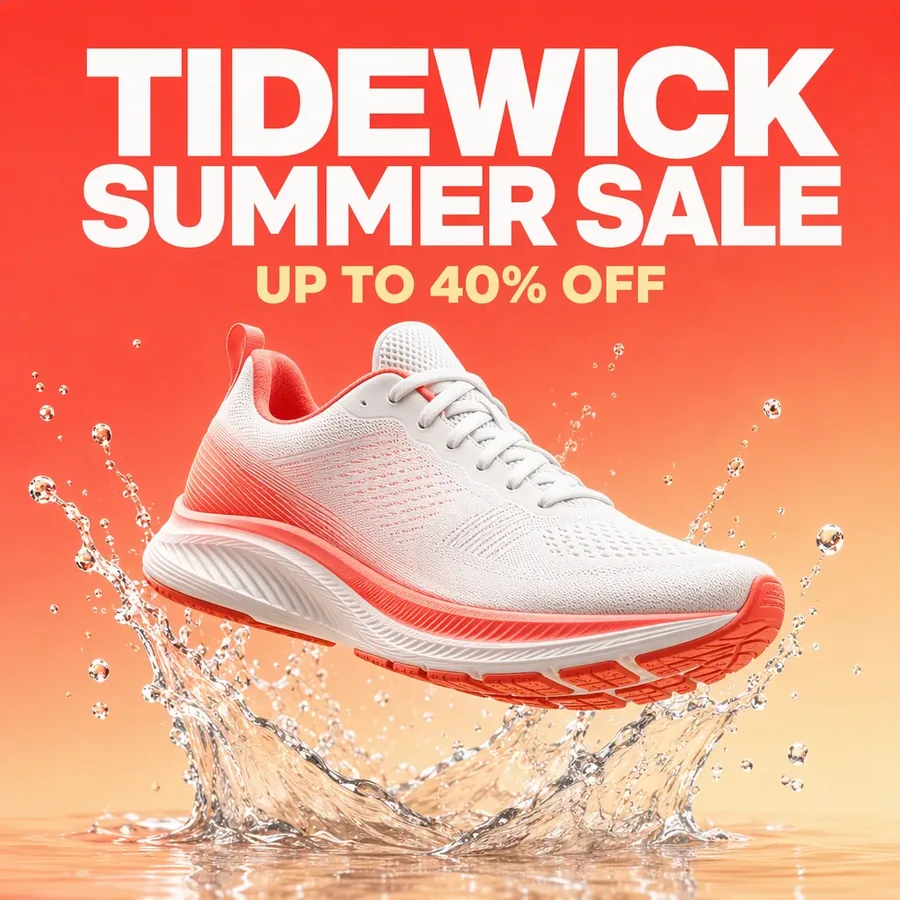
You need only the artwork file and about three minutes. Our example is a fictional “Tidewick Summer Sale” poster, taken as far as the plan and no further.
Screenshots from the live site · checked on blurbly.ai
This is the same box the steps below walk through. Keep this tab open and follow along with your own product.
What you need
- The poster or flyer as an image file: JPG, PNG or WebP. Use the original export, not a photo of a printed copy. A motion poster keeps your artwork as it is, so blur and glare stay too.
- Final text. Fix typos, prices and dates in the design before uploading; a motion poster does not rewrite them.
- Optional: one sentence if you want more than the poster, such as “15-second promo for Instagram, end on the discount”.
Step 1 of 5
Upload the artwork as the product image
On blurbly.ai, tap + Product, choose Upload and pick the poster file, then tap Continue (1). Leave Video selected. You do not need to type anything; we left the text box empty.
Wait until the thumbnail stops showing Processing, then tap GENERATE.
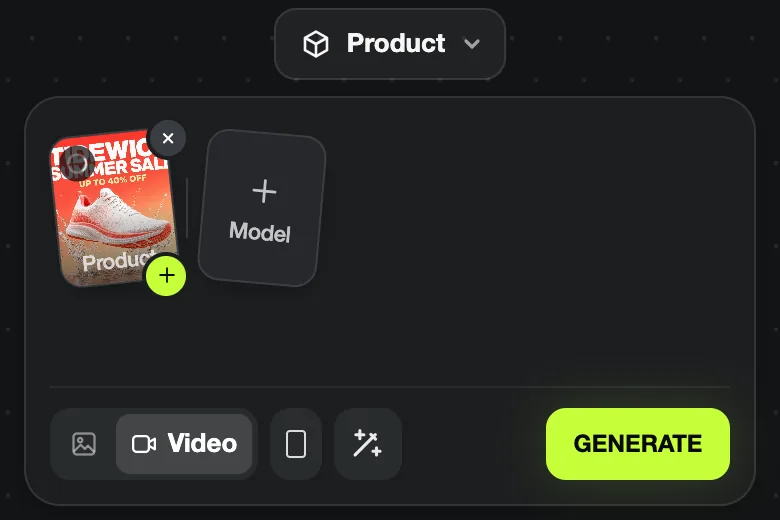
Common problem: The create box calls the slot “Product”, which is expected for posters too. Upload one poster per task so the plan has one offer to build on.
Step 2 of 5
Check what Blurbly read from the poster
Blurbly’s first reply says what it sees. Ours: “I see a Tidewick summer sale graphic with a coral running shoe splashing into water. I’ll build a promo around the sale, with the shoe in motion and the offer text readable at the end.”
There is no separate form for checking the poster text. This sentence, and later the plan title, are where you confirm the brand, the offer and the product were understood. The web research card then runs as it does for any video.
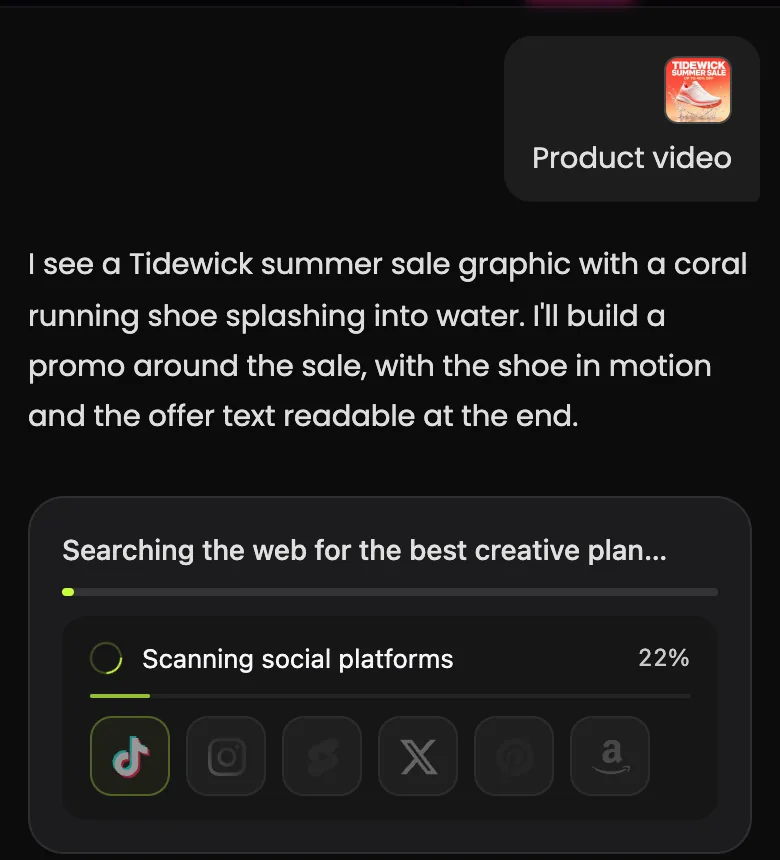
Common problem: Your message bubble shows “Product video” when you left the text box empty; that is only a label. If the reply gets the brand or offer wrong, the artwork is probably hard to read at small size. Upload a larger or higher-contrast export.
Step 3 of 5
Choose Motion poster on the specs card
When Blurbly recognises a poster, the type list on the Video specs card gains an extra first option: Motion poster, “Poster comes alive, zooms to price · 5s”. Our card suggested Promo offer video, a 15-second ad that ends on an offer card, so we tapped the type tile and switched.
Choose Motion poster when the poster itself is the ad and the text must stay exactly as designed. Keep Promo offer video when you want new scenes of the product or the shop with the offer at the end.
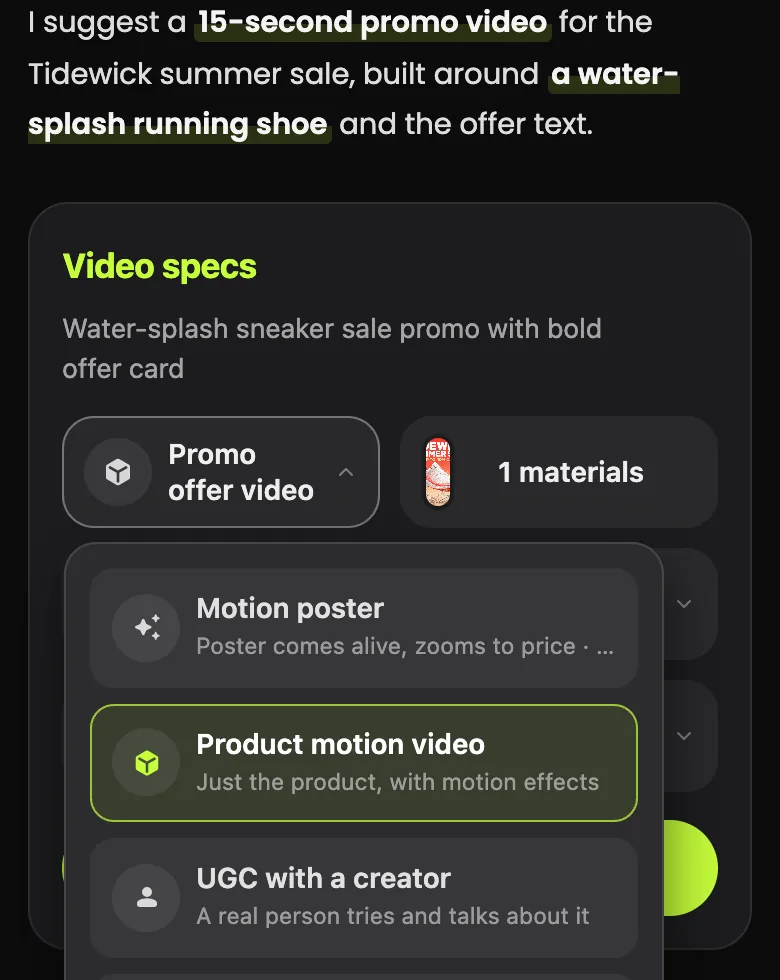
Common problem: If Motion poster is missing from the list, Blurbly did not read the upload as a poster, usually because it has little or no text on it. Use Promo offer video, or upload the version with the headline and price.
Step 4 of 5
Confirm the fixed 5-second vertical format
With Motion poster selected, the length is fixed at 5s and the format at Portrait 9:16. The quality and voice-over tiles disappear, because a motion poster has no narration. Tap Confirm & start planning.
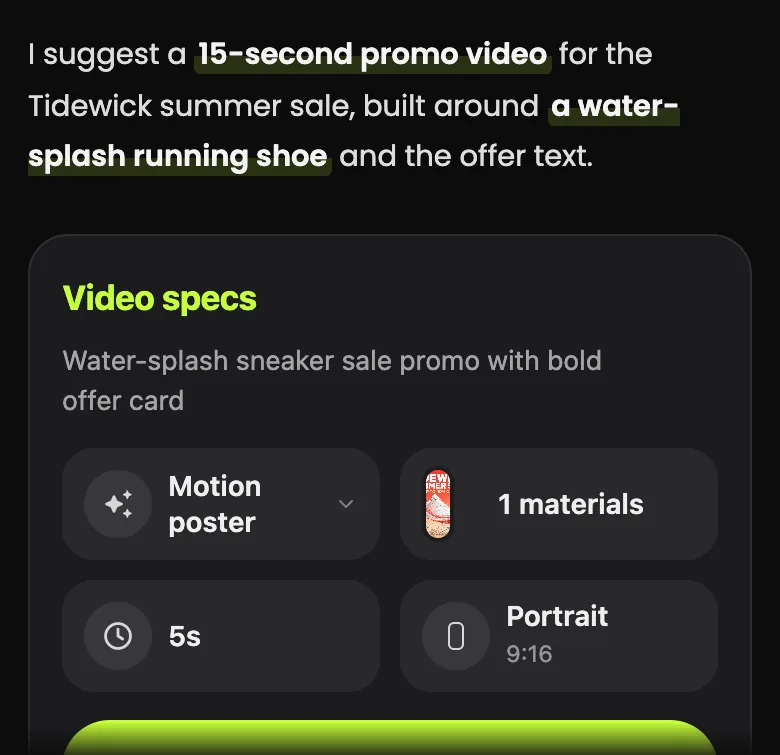
Common problem: A square poster is placed in a vertical frame. If you need a square clip for a feed post, Motion poster is the wrong type; choose Promo offer video and set the ratio to Square 1:1.
Step 5 of 5
Read the one-shot plan, then tap Unlock
The plan is short: “I’ll turn your poster into a 5-second motion poster: the picture comes alive, the camera punches in on your price, and every printed word stays exactly as it is.” The Video plan card shows your upload, the type and a single shot named after your headline (ours: TIDEWICK SUMMER SALE), tagged “poster · push-in to the price”.
There are no preview frames for this type, because the video starts from your own artwork. Check that the shot title matches your headline, then tap Unlock to render it.
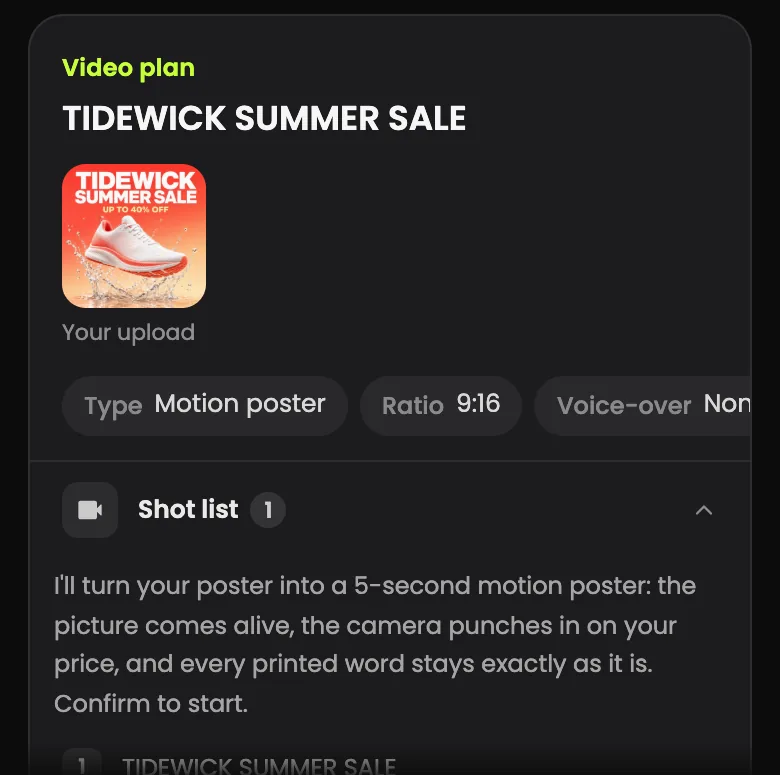
Common problem: If your balance is too low, Blurbly says so in the chat and may open the membership window. Closing the window keeps the plan; return to the task from your history when you are ready.
What you get
We did not render this plan, and Blurbly’s sample library has no motion-poster clip yet, so there is no output video on this page. According to the plan, the result is a 5-second 9:16 video of your own artwork: the picture moves, the camera pushes in to the price, and the printed words are not redrawn.
Below is the artwork we uploaded, so you can compare it with your own.
Tips for better results
- Make the price or discount the largest, highest-contrast text. The camera ends on it, so a small price leaves a mostly empty last frame.
- Keep important text away from the edges. A square poster sits inside a vertical frame, and the push-in brings the edges closer to being cut.
- Export at least 1080 pixels wide. The motion poster starts from your file, so a small or compressed image looks soft on a phone.
- One offer per poster. A flyer with ten prices gives the push-in no single place to land; use Promo offer video for full menus.
- Building the poster first? See the AI product poster generator for posters with readable prices.
Troubleshooting
- Motion poster is not in the type list
- The upload was not recognised as a poster. Upload the artwork with its headline and price, or use Promo offer video.
- “This image can’t be used. Please choose another one.”
- The file did not pass the automatic check. Re-export the poster as JPG or PNG and remove anything that should not be in an ad.
- The chat says your balance is short
- The plan is saved. Close the window if it opens and come back to the task later; nothing is charged until you tap Unlock.
- “Your previous request is still being prepared…”
- One task per account runs at a time. Let the current one finish, then tap GENERATE on the poster again.