

Blurbly AI tutorial · about 3 minutes
How to make a set of listing images from one product photo
One decent product photo is enough to plan a full listing gallery on blurbly.ai: a white-background main image, a lifestyle shot and a close-up.
This internal test took about three minutes on 19 October 2026 and stopped at the image plan, before paid rendering. The screenshots preserve the Clean Studio style used then; the listing page now starts in Image, 1:1 with no default style. Available previews and response times can vary.
Screenshots from the live site · checked on blurbly.ai
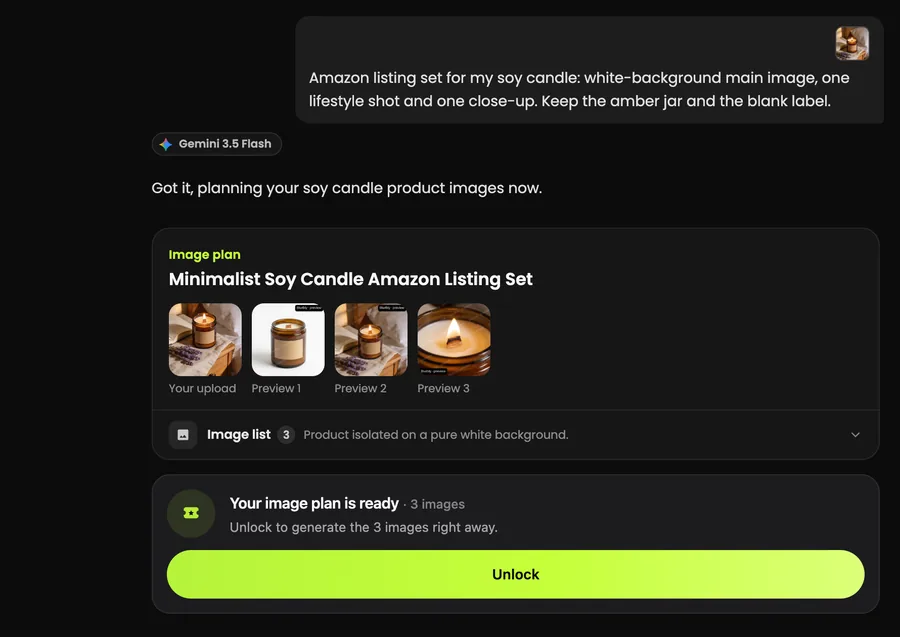
This is the same box the steps below walk through. Keep this tab open and follow along with your own product.
What you need
- One photo of the product. It does not have to be on white: we started from a phone-style photo of a candle on a nightstand, with a book and lavender around it.
- A list of the image slots you need, for example “white-background main image, one lifestyle shot and one close-up”.
- Your marketplace’s rules for the main image. Amazon, for example, wants a pure white background and the product alone; see Amazon main image requirements.
Step 1 of 5
Open the listing image box and add your photo
Go to the AI product listing image generator page on blurbly.ai. Its create box starts in Image, 1:1 with no default style. Name the marketplace and each image slot in your request. The Clean Studio chip in the screenshot below belongs to our 19 October test.
Tap + Product, upload the photo and tap Continue (1). In the text box, name the slots and say what must not change. We wrote: “Amazon listing set for my soy candle: white-background main image, one lifestyle shot and one close-up. Keep the amber jar and the blank label.”
From the home page, switch the box to Image and choose the aspect ratio you need. Templates are optional; for a main image, check that any selected style does not add props, text or packaging details.
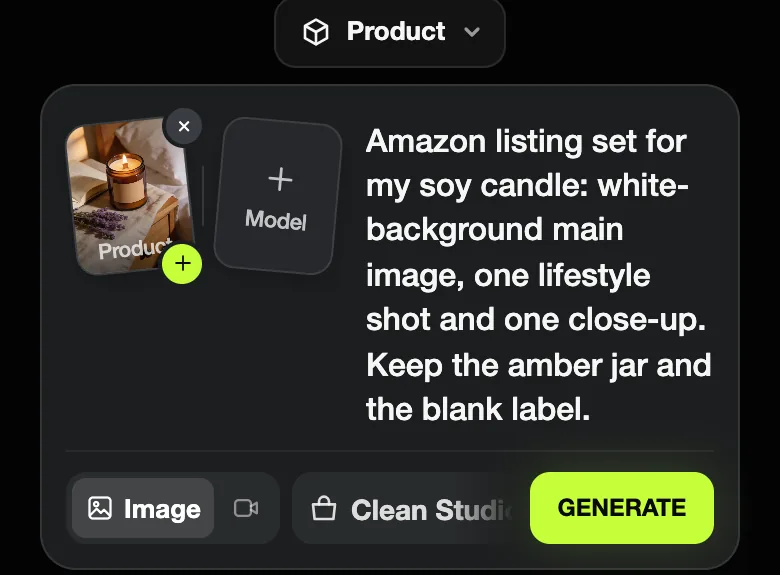
Common problem: Before submitting, check Image mode and describe the main, lifestyle and detail slots explicitly. A style chip does not guarantee a listing set or a compliant white background.
Step 2 of 5
Generate and read the image plan
Tap GENERATE. Image sets skip the web research and the specs card: Blurbly answers with one line (“Got it, planning your soy candle product images now.”), shows a short progress card and then an Image plan with a title and one preview per image.
Our plan, “Minimalist Soy Candle Amazon Listing Set”, had three previews: the candle on white, the candle lit on a bedside table, and a macro of the burning wick. All three were there within about a minute of tapping GENERATE.
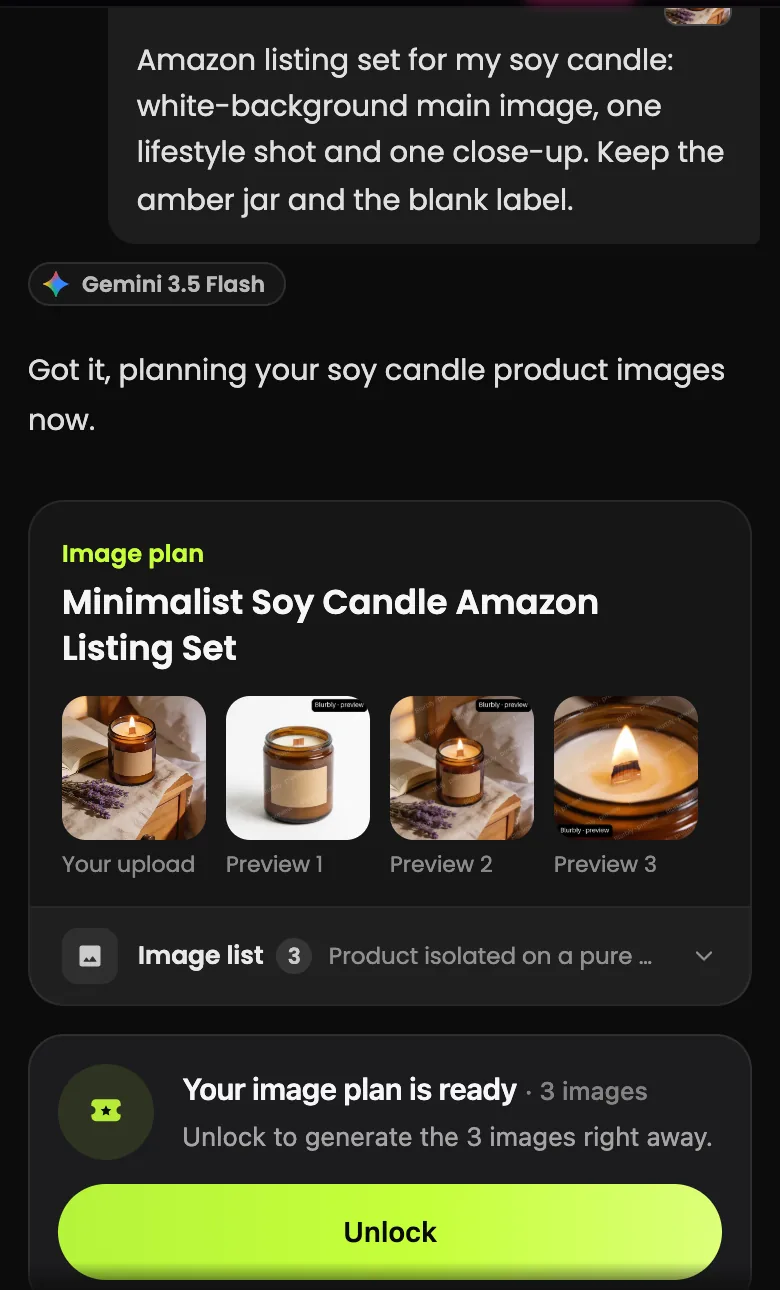
Common problem: The progress card may say “Planning your video…” even for an image set. That is only the label; the plan card itself says Image plan, and its closing line counts images.
Step 3 of 5
Check each slot in the image list
Open Image list. Each image has a one-line purpose, a full description of the shot and a role tag: main, lifestyle or detail. This list is what gets generated once you pay.
Check the main image against your marketplace rules: pure white background, the product alone, nothing added. Then check that every description keeps the details you care about. Ours repeated “a cylindrical amber glass jar with a blank rectangular kraft paper label” in each slot.
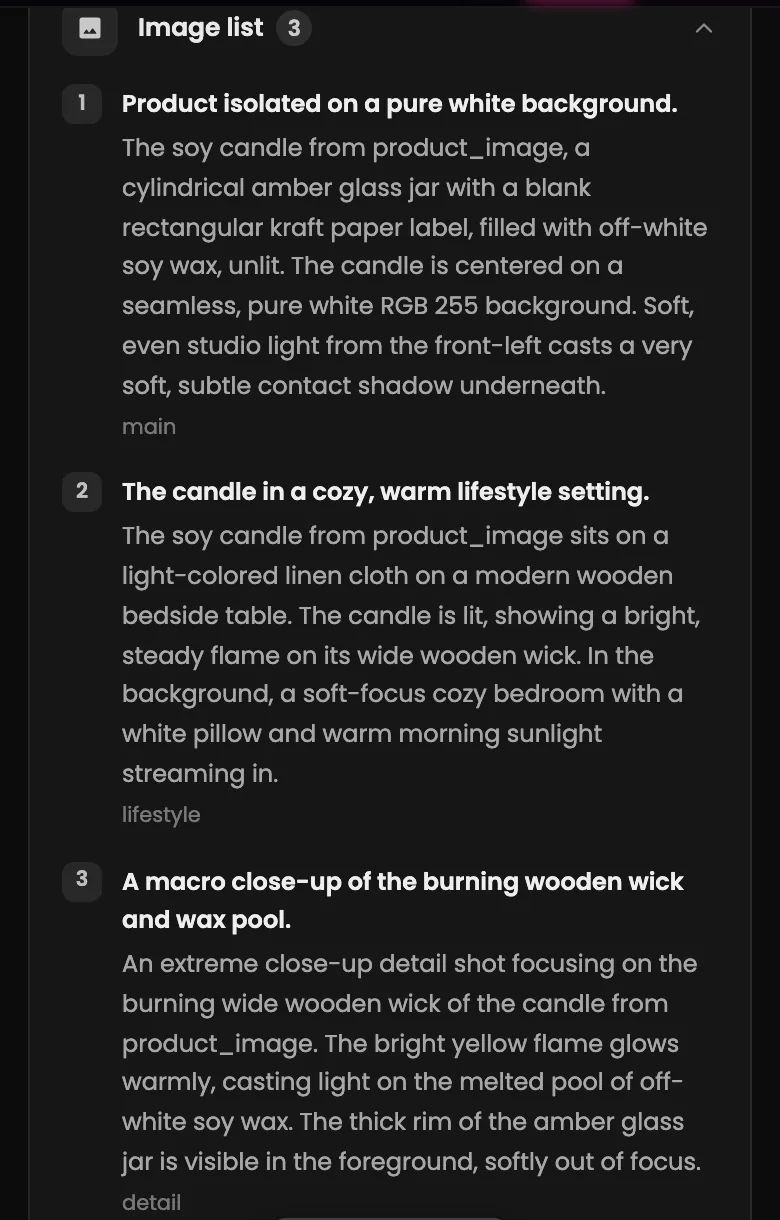
Common problem: Need more slots, such as the packaging, a back view or the size in a hand? Ask in the box under the plan and name each one. Be specific; “more images” does not tell the planner what is missing.
Step 4 of 5
Zoom into the previews
Tap a preview to open it larger and use the arrows to step through the set. Previews are low resolution and carry a “Blurbly · preview” watermark; they show composition and product accuracy, not final quality.
Compare the label, the lid and the proportions with your photo. Our white-background preview kept the blank kraft label and the wooden wick, which is exactly what to look for before paying.
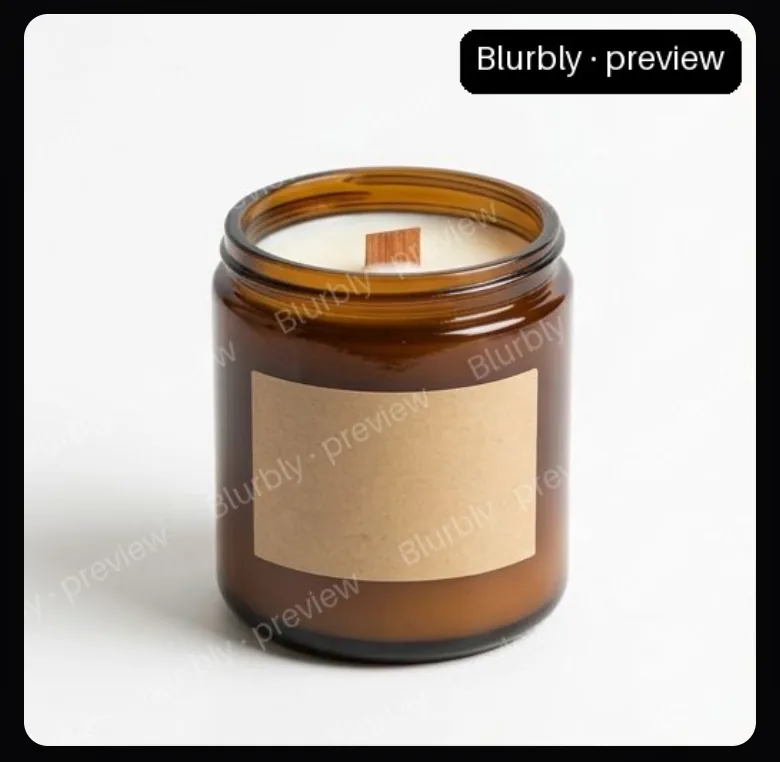
Common problem: If a preview gets a detail wrong, such as text appearing on a blank label or a changed lid, say so in the box under the plan before tapping Unlock. The full images are generated from the same descriptions.
Step 5 of 5
Unlock to generate the full set
The card ends with “Your image plan is ready · 3 images” and “Unlock to generate the 3 images right away.” Unlock is the paid step; the images are then generated at full resolution.
On a computer the plan looks the same, with your earlier tasks in the left sidebar, so you can return to it later.
After downloading the full-resolution main image, check its pixels before uploading to Amazon. Compare any findings with the main image requirements. If the background or product details need another pass, return to the listing image generator with your original references, then check the new export again. The checker does not confirm product accuracy or Amazon acceptance.
Common problem: Before uploading to Amazon, run the main image through the free Amazon main image checker, which tests the white background and how much of the frame the product fills.
What a finished listing set looks like
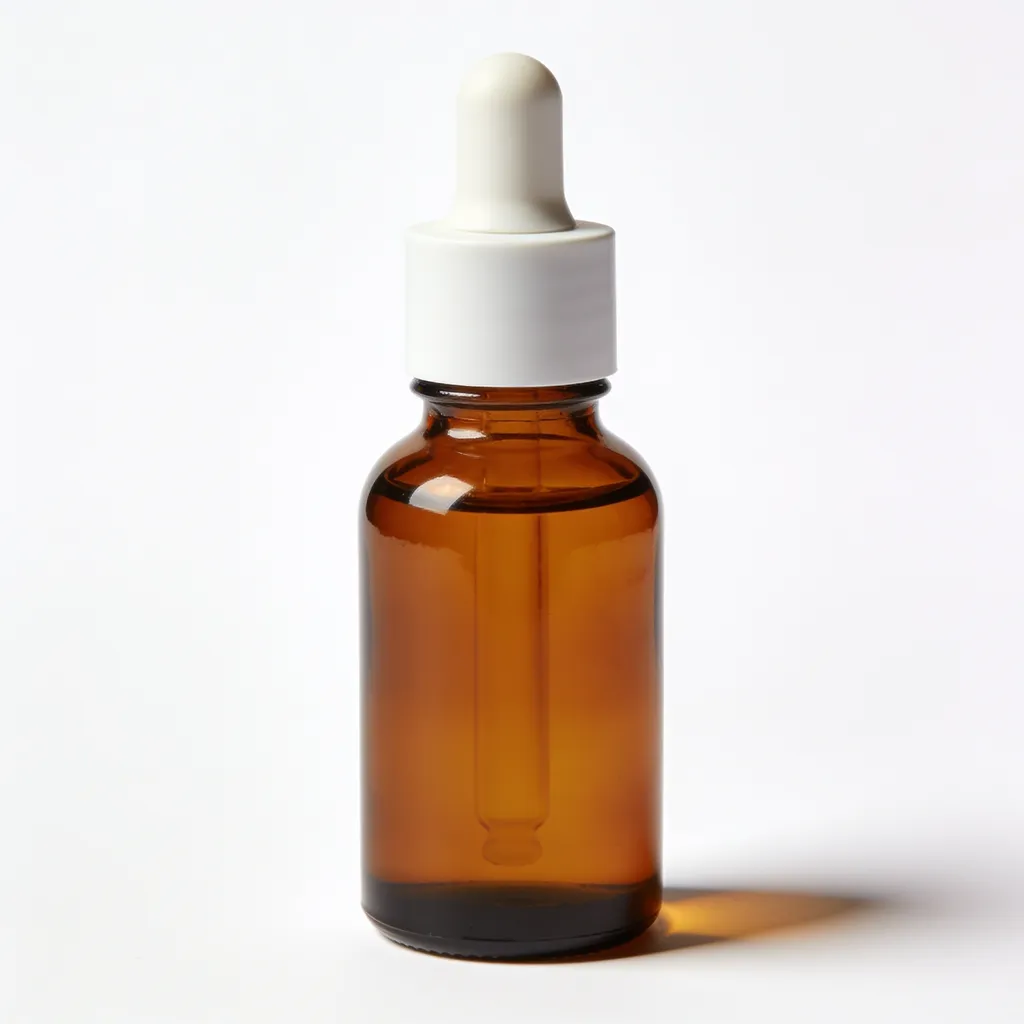
We did not pay for this run, so it produced no full-resolution images. Below is a complete set for a different fictional product from Blurbly’s sample library: main image, lifestyle shot and texture close-up.


Tips for better results
- Start from your sharpest photo, even if the background is busy. The main image is re-staged on white; what matters is that the edges, cap and label are clear.
- Name every slot in one sentence: “main image on white, one lifestyle shot in a bedroom, one close-up of the wick”. Each slot becomes one entry in the image list.
- Say what must not change. “Keep the amber jar and the blank label” kept the planner from inventing label text in our set.
- Mention the marketplace by name. Our plan title and main-image description followed “Amazon listing” in the request.
- Check pixel sizes after download with the free product image resizer or the Shopify image size guide.
Troubleshooting
- I got styled product photos instead of a listing set
- Name the marketplace and every requested slot in the brief. Remove any style reference that adds decorative details, ask the planner to revise the image list, and check it before paying.
- No previews appear
- Previews are not available for every request. The image list is still complete, so you can judge the plan from the descriptions before paying.
- “Only JPG, PNG, WebP, HEIC and GIF images are supported.”
- Convert the file, for example a PDF spec sheet or a TIFF from a camera, to JPG or PNG and upload it again.
- “Your previous request is still being prepared…”
- Another plan from your account is still running. Let it finish, then generate the listing set.