

Product photos, video planning and real tests
How to make AI product video ads: from photo to reviewed video
A clear product photo does not tell an AI video model what viewers should notice, what should move or how the video should end. Those decisions belong in the brief and shot plan.
Plan a short video from your product photo. You see the plan and the price before anything is generated.
Use this guide to plan a small test, inspect the actual output and describe a useful correction. All photos and videos below are Blurbly’s own fictional AI demonstration assets, with recorded costs and limitations. No customer-uploaded images are used.
Blurbly editorial · · 8 min read

1. Turn a product feature into something visible
Start by separating product facts from advertising claims. For a candle, an amber glass jar, cream wax and a wooden wick are visible details. A promise that it improves sleep is a performance claim that a photograph cannot establish. Write down what the image actually shows before asking for a creative idea. Supply verified facts separately if you want them used in the script.
Give each visible feature one possible treatment. Light passing through amber glass can introduce the colour. A close view can show the wick. A gentle camera movement can establish the bedside setting. These are different creative choices, so pick one for the first test rather than asking for a room transformation, an actor and several camera moves in the same short clip.
Ask the planner to identify visible features, suggest a simple visual idea and propose a shot plan for review. Remove any invented ingredient, specification or benefit. The purpose is to decide what a viewer should notice, not to let the model invent a product story. Keep your chosen idea in one sentence so you can check the final video against it.
2. Prepare the photo and write a brief with boundaries
Open the AI product video generator, choose the product-video workflow and attach a clear product image. If you also have a product page, include its exact URL and relevant facts. Keep the photograph attached: the page supplies context while the image establishes the appearance. Follow the product-link-to-video walkthrough for the input and planning controls.
Choose the exact colour or version you want to advertise. The main image should show the whole product without unrelated products covering it. Small text that is already difficult to read in the source is a poor basis for checking label accuracy later. For a first experiment, a familiar setting and one short action give you fewer moving parts to evaluate.
Example brief: Plan one five-second vertical product video using the attached candle photo. Preserve the amber jar, blank kraft label, wax and wick. Use the existing bedroom setting with a slow camera push-in and gentle flame movement. Keep the complete candle visible at the end. Do not add people, extra products, captions, speech, music or product claims. Show the proposed shot plan and total quote before rendering.
This brief is a request, not evidence that the output will obey every condition. It states the product, duration, framing, movement and exclusions so the next review has something concrete to compare. Leave a style reference unset for this simple test unless you deliberately want a particular visual treatment.
3. Review the actual plan before confirming a render
Read the proposed product description, shot count, camera movement, frame format and soundtrack selection. Do not approve a multi-scene plan because its summary sounds close to your single-shot brief. A plan with two timeline beats and a cut is already different from a continuous shot, before the video model starts working.
Check what appears in the first frame and what remains in the last. The product should be recognizable at both ends. If hands or a presenter are included, inspect what they are supposed to touch or demonstrate. Remove any action that would be unsafe, impossible or misleading for the real item. A visually attractive storyboard is still only a proposed sequence.
Read the concrete audio choice separately from the summary. Our beverage-remake record contains a useful example: the summary mentions retaining original audio, but the source is silent and the soundtrack row selects library music. Check the explicit setting and listen to the result rather than assuming those statements mean the same thing.
Finally, review the current quote and account access. Reference images, video segments, retries and export access can affect the project differently. Planning, trial generation, previews and full-quality downloads are separate conditions. The official pricing explanation describes these distinctions; the quote shown for your account is the one to review before confirming.
4. Watch one short generation beside its source photo
Our candle product test used one fictional product photograph and one five-second video generation. The run used 330 credits, with no paid reference-image generation. The raw MP4 is approximately 5.04 seconds at 720 by 1296 pixels. This is a recorded internal experiment, not a claim about customer advertising performance.
The amber jar, blank kraft label and bedroom props remained recognizable in sampled frames. However, the requested continuous shot changed framing around the third second. The raw file contained an audio track, and the automatic edit added music and Chinese copy. We did not accept that automatic edit as a finished ad. The player below shows the raw generation rather than hiding those limitations behind a replacement edit.
Watch once for the sequence, then again for product details. Pause at the opening, any transition and the ending. Compare the jar outline, label position and nearby props with the original photo. Listen separately even when the brief requested silence. A completed generation status establishes that a file exists; it does not establish that the creative meets the brief.
The full candle product-video record includes the input, exact request and findings. Keep a similar record for your own test so a later correction addresses a specific mismatch rather than a vague impression.
Original photo and actual product video

An amber candle on a bedroom nightstand, generated from one fictional product photo. The unretouched clip changes framing around three seconds and contains an audio track despite the brief. Internal AI test, not measured ad performance.
An internal generation test using a fictional product, not a customer testimonial or measured advertising result. The 1080p automatic export does not establish native 1080p model detail. The original request was not followed completely.
5. Compare a failed take with its correction
Describe the observed problem before requesting another attempt. Instead of asking for a better video, specify that the composition must stay fixed, the extra product must disappear or captions must be removed. Where the workflow offers a particular output or segment for revision, target it; otherwise prepare a revised request and inspect its new quote. Do not assume a retry is free.
Our fictional AI-presenter example first introduced a split screen and an animated speaking mouth. For the correction, we used one generated start frame instead of the storyboard grid, removed the style reference and turned Sound and Prompt enhance off. These are the recorded choices for that test, not a promise that every model offers identical controls.
The correction removed the split layout and its downloaded file had no audio stream. Unwanted mouth and hand movement remained. A silent file does not mean a presenter has stopped visibly speaking. The two players let you inspect that difference directly. This is an AI demonstration, not a real customer testimonial or a fully approved finished ad.
The complete experiment used 1,560 credits: 900 for three generated reference images, 330 for the first video and 330 for the correction. That is the recorded total for these attempts, not a standard package price. The presenter test record explains the input changes and the remaining issues. Count all attempts when deciding whether a workflow fits your budget.
First attempt and corrected presenter video
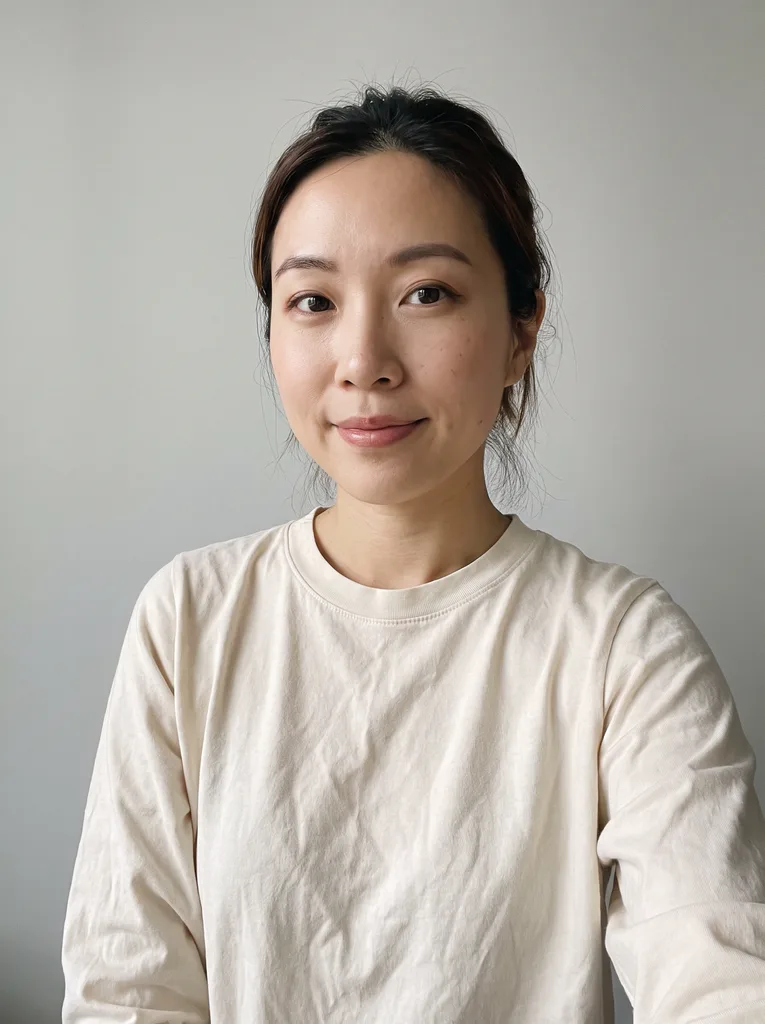
The original raw video introduces a split screen and unwanted mouth movement. Compare with the correction.
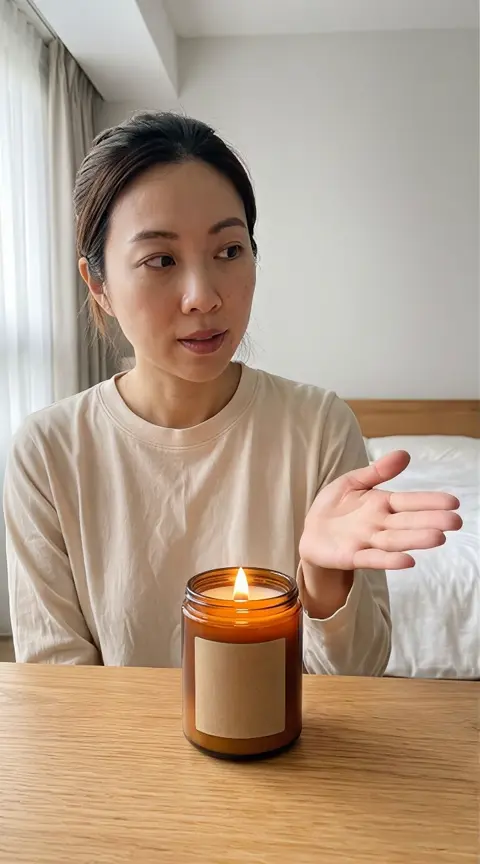
A fictional AI presenter gestures beside an amber candle in one full-frame scene. This five-second correction has no audio stream or split screen; unwanted mouth movement remains. Internal AI demonstration, not a customer review or approved ad.
Internal generation test with a fictional product and fictional AI presenter. No real customer testimonial, measured ad performance or platform approval. Initial entry used the default Review style despite the no-style request; the correction supplied no style reference. This button loads the correction brief, not the rejected first brief.
6. Start with a reference video when the sequence already exists
When you own a reference video or have permission to adapt it, open AI ad remake and select Viral Remix. Add the reference video and a clear photo of the replacement product. Explain which parts of the sequence should stay and which product details must change. If you have no reference, use the product-video workflow rather than treating a product-only request as a remake.
Our owned coffee reference follows a pour, mixing detail, café handoff and drink reveal. The remake adapts those beats to fictional bubble milk tea with a clear cup, kraft sleeve, wide straw and visible pearls. Compare the reference, product photo and resulting cut below. The generated camera moves and cut timing are not frame-identical to the source.
Check inherited details carefully. The ending shows two cups, following the reference composition. One uploaded product photo does not establish that a two-item offer exists, so no bundle or price claim should be inferred. The source file is silent; the final cut includes a selected library soundtrack. Listen to it and check the applicable music conditions before publishing.
The assembled export is 1080 by 1920 and approximately 8.03 seconds. The recorded route used a 480p base with 720p upscaling before the final edit, so the export size is not evidence of native 1080p generation detail. The saved quote was 1,620 credits; this internal admin test actually charged zero user credits and was not a retail purchase. Follow the recorded remake tutorial for the interface steps.
Owned reference, replacement photo and remake output
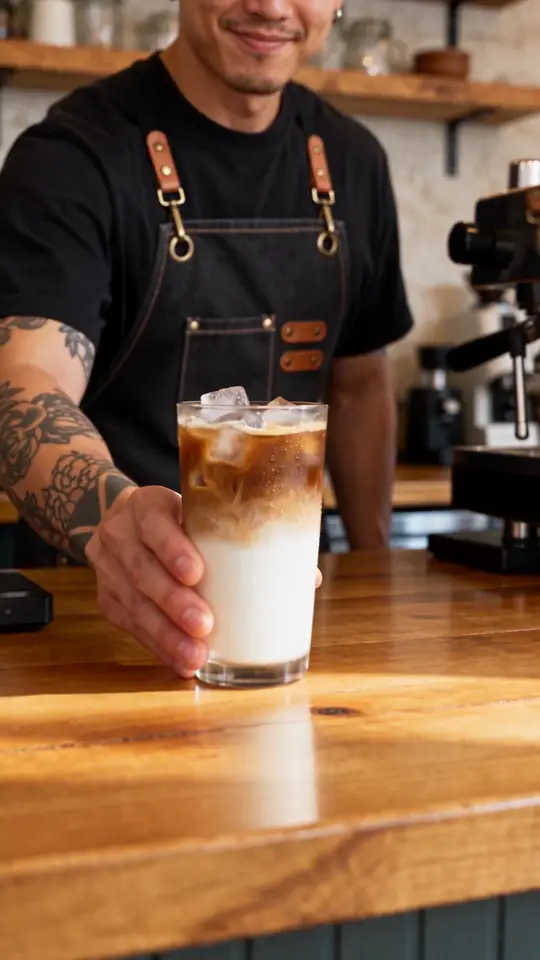
Owned AI-generated café reference: an 8.04-second iced-coffee sequence. The source file is silent.
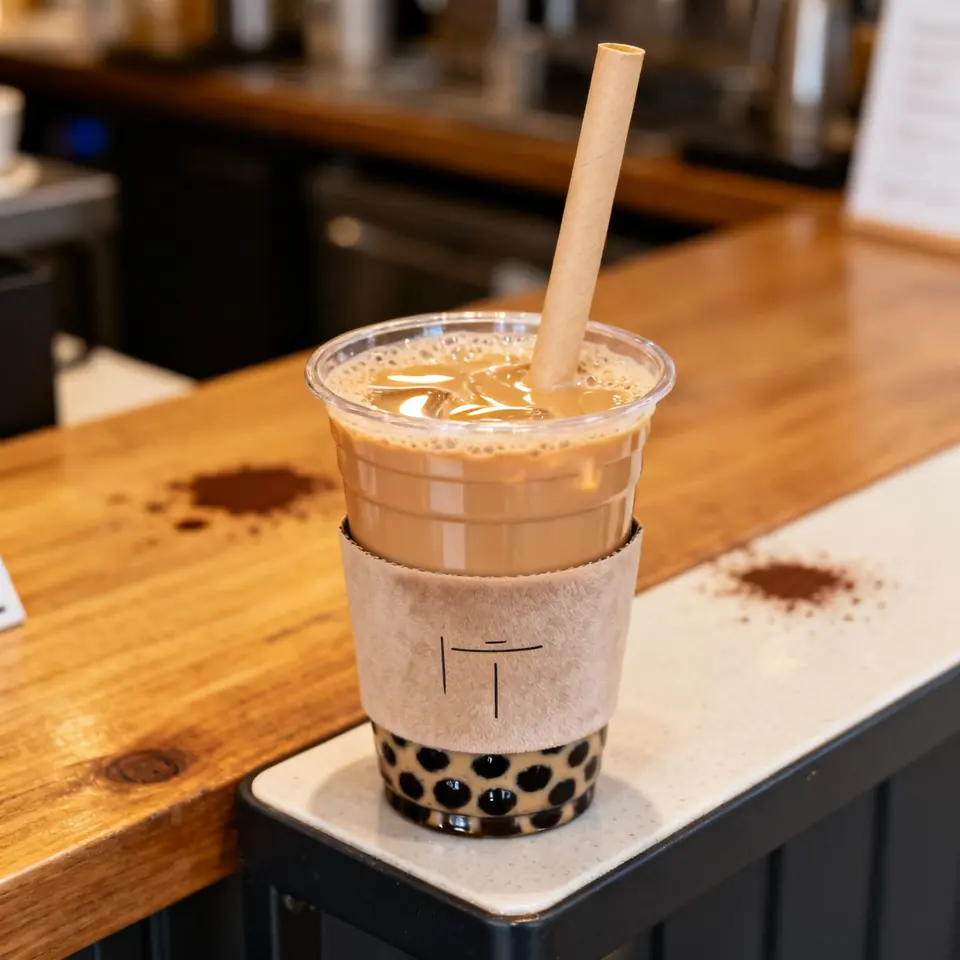
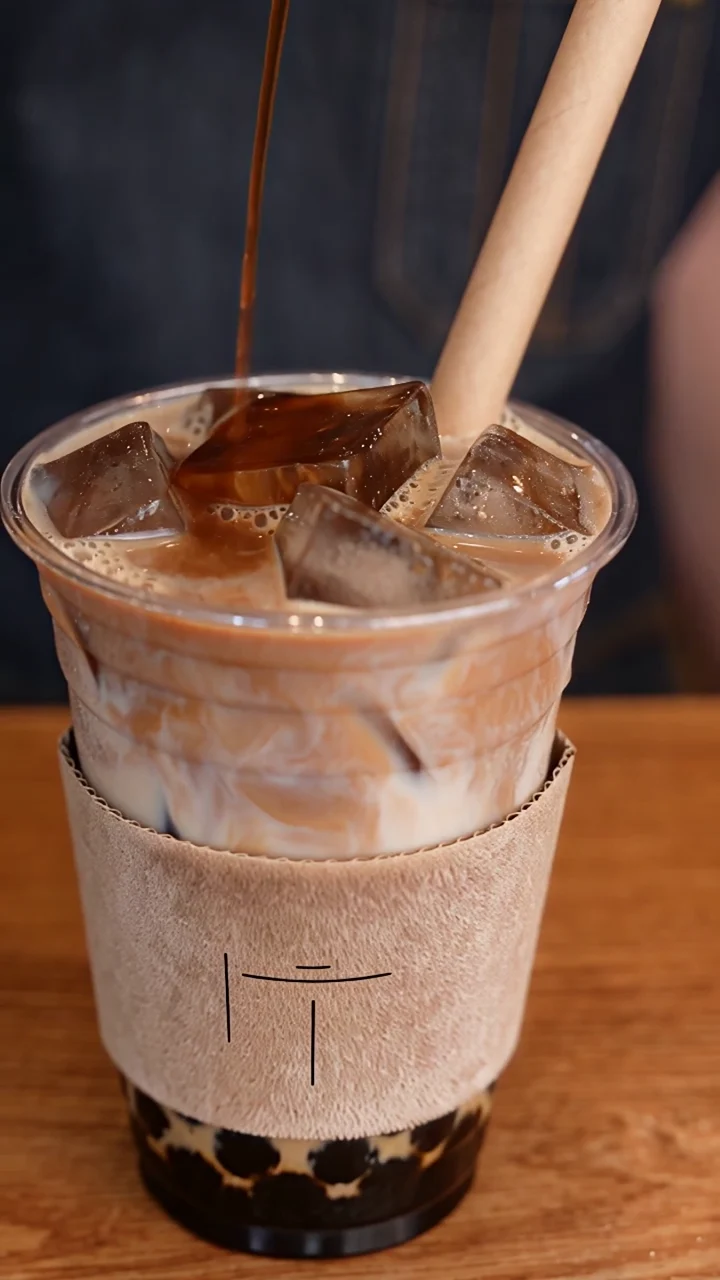
A milk-tea pour, close-up, café handoff and final two-cup reveal. This actual Blurbly workflow used an owned eight-second coffee reference and a fictional product photo. AI-generated internal test; not customer material or measured ad performance.
Recorded internal test with our own AI-generated reference and fictional product photo. No customer uploads, testimonial or advertising performance measurement. One video generation; no external retouching or replacement edit was applied to the published output.
7. Review the complete file before export or publication
Inspect the finished video at the size and aspect ratio of the placement you intend to use. Make sure the complete product remains visible after any crop. Check labels and proportions at full size, then watch at phone size to see whether the product is still understandable. A decorative transition that obscures the item can defeat the purpose of a short product demonstration.
Review audio, captions, prices and claims separately. Confirm that music is suitable for the intended use and that spoken or written copy reflects facts you supplied. An AI presenter should not be presented as a customer describing an experience they never had. Check hands, faces and contact with the product rather than watching only the most attractive frame.
If you compare two versions, change one important choice at a time and record it. Keep the source image, brief, plan, model settings, quote, output and review notes together. This makes it easier to understand whether a revised input helped. The practical goal is a repeatable review process; these examples do not establish sales, click-through rates or platform approval.
- Check packaging, colour, label position and product proportions.
- Listen for unwanted speech, music or sound effects.
- Verify the opening, transitions, ending and intended crop.
- Confirm current download access before relying on an export.
Where this workflow comes from
This tutorial takes its planning approach from Da Liu’s article about AI ecommerce video creation: develop the creative and shot sequence before asking a model to render. The interface instructions, media and findings here belong to Blurbly AI. The original article demonstrates another product; its features, promotional prices and claimed results are not Blurbly test results.
Start with your own photo, one visible feature and one short test. Review what the system actually planned and produced, then decide what to keep or change. The generator at the top of this page opens a product-video draft without a style preset; it does not automatically start generation. Existing examples below each step are for inspection before you commit to a new run.