

Blurbly AI tutorial · about 10 minutes
How to remake a video ad with your own product
Use Blurbly AI ad remake when you have a reference video and want to rebuild its creative sequence around your product. This walkthrough follows our internal test: an eight-second coffee creative becomes a bubble-milk-tea ad from one product photo.
The reference and product image are our own AI-generated assets. We recorded the live interface on 25 October 2026 and confirmed one video generation. Allow about ten minutes to prepare and review a short test, plus any provider queue. Steps 1–3 show the recorded interface; step 4 shows a frame from its actual output. The recorded canvas uses Traditional Chinese; controls appear in your selected interface language.
Recorded interface and actual output · checked on blurbly.ai
This is the same box the steps below walk through. Keep this tab open and follow along with your own product.
What you need
- A reference video you own or have permission to adapt. We used the complete, eight-second iced-coffee sample from our fictional café library; the remake workflow reads up to the first 60 seconds.
- One to three clear product photos. Our image shows a clear milk-tea cup, kraft sleeve, wide paper straw and visible tapioca pearls. These are the details the new footage needs to carry into each scene.
- A short direction explaining what should stay and what should change. Pick the opening, demonstration or ending you want to repeat, and supply the product facts the script may use.
- An account eligible to generate and enough credits for the displayed quote. Review the plan first; do not assume a separate ad pack or a generic video rate covers this particular remake.
Step 1 of 4
Open the ad-remake panel
Go to the AI ad remake page. On a phone, the Viral Remix panel sits directly below the large heading. On desktop it follows the introduction. This is the same production panel used by the workflow, not a separate example form.
Start with the reference video, not just a sentence describing an ad you liked. The source gives the planner the sequence and timing; the product photos tell it what belongs in the new footage. If you have no reference, choose the product video generator instead.
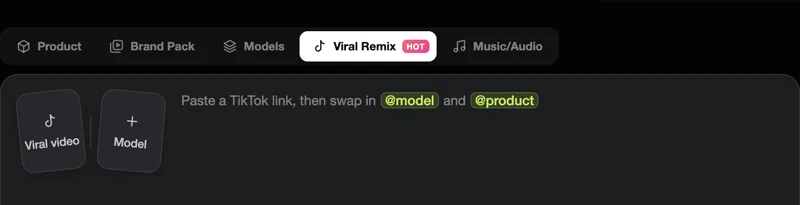
Common problem: If you see the product or brand-pack workflow, select Viral Remix. A product-only request follows a different planning route and is not a reference-video remake.
Step 2 of 4
Add the reference and your product photo
Upload the reference file through the Viral video card, or paste a supported public TikTok, Instagram or direct video link. Add the product image through the same upload control or its small plus button. Wait for the uploads and safety review to finish before starting the plan.
Our brief asks for the coffee reference’s pour, mixing detail, café handoff and final-drink rhythm, with the new cup, sleeve, straw and pearls throughout. We request no speech, captions, added logos, prices or health claims. This is a direction for the planner; it does not require writing every camera instruction yourself.
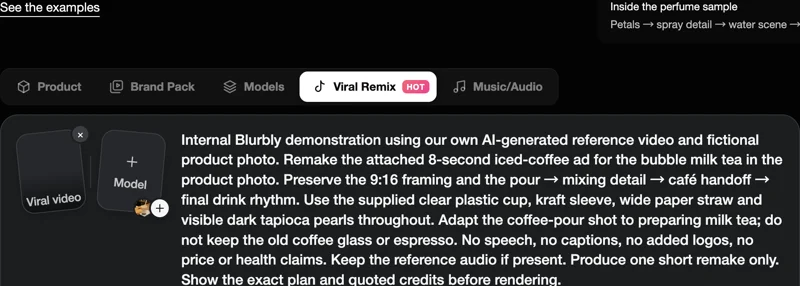
Common problem: A private or unavailable video link may not import. Upload a file you can use instead. Keep the full product in view in the photo; background props and unreadable packaging can confuse the replacement.
Step 3 of 4
Review the scenes, audio and quote before confirming
Select Remix it to request a plan. The canvas analyzes the source and proposes the remake. Open the shot list and check the product description, actions, frame format and dialogue. A short reference can use one generated segment containing several visual beats; one segment does not necessarily mean one static camera shot.
In our plan, the coffee actions become a milk-tea pour, swirl, handoff and final cup. The reference file is silent, so the plan chooses library music rather than keeping an original soundtrack. The generation quote and outcome belong to this recorded test; your current plan may use a different quote. Confirm only after the plan describes the film you want.
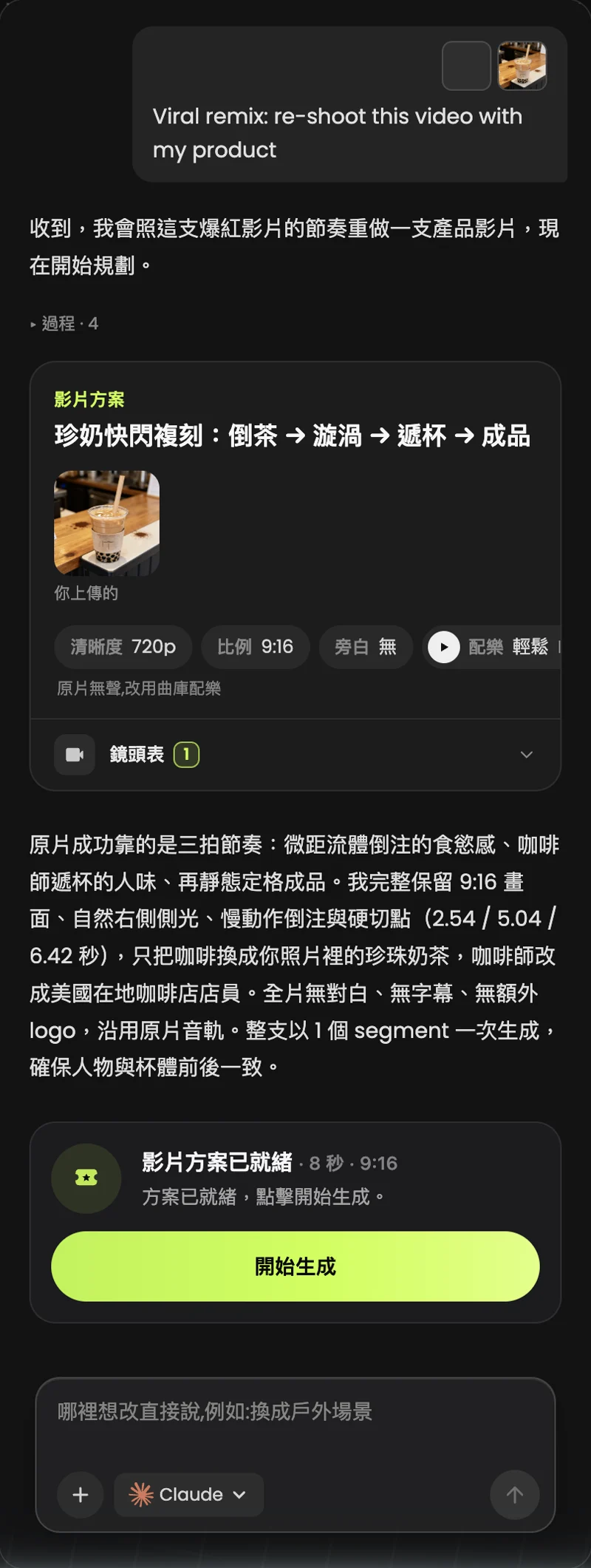
Common problem: Read the concrete choices, not just the summary. In this test the written summary mentions retaining original audio, while the soundtrack row correctly says the source is silent. The explicit audio choice is the one to inspect.
Step 4 of 4
Watch the finished cut beside the reference
After confirmation, the video segment renders and the workflow assembles the final cut. Open the output and watch it once for the creative sequence, then again for the cup, sleeve, straw, pearls and hand contact. Listen separately for speech, music changes or a clipped ending.
The actual files and review are published in the recorded remake case. Compare the source and result there rather than assuming a successful status proves every detail is correct. The test record identifies what was supplied, what the plan asked for and what the output actually showed.
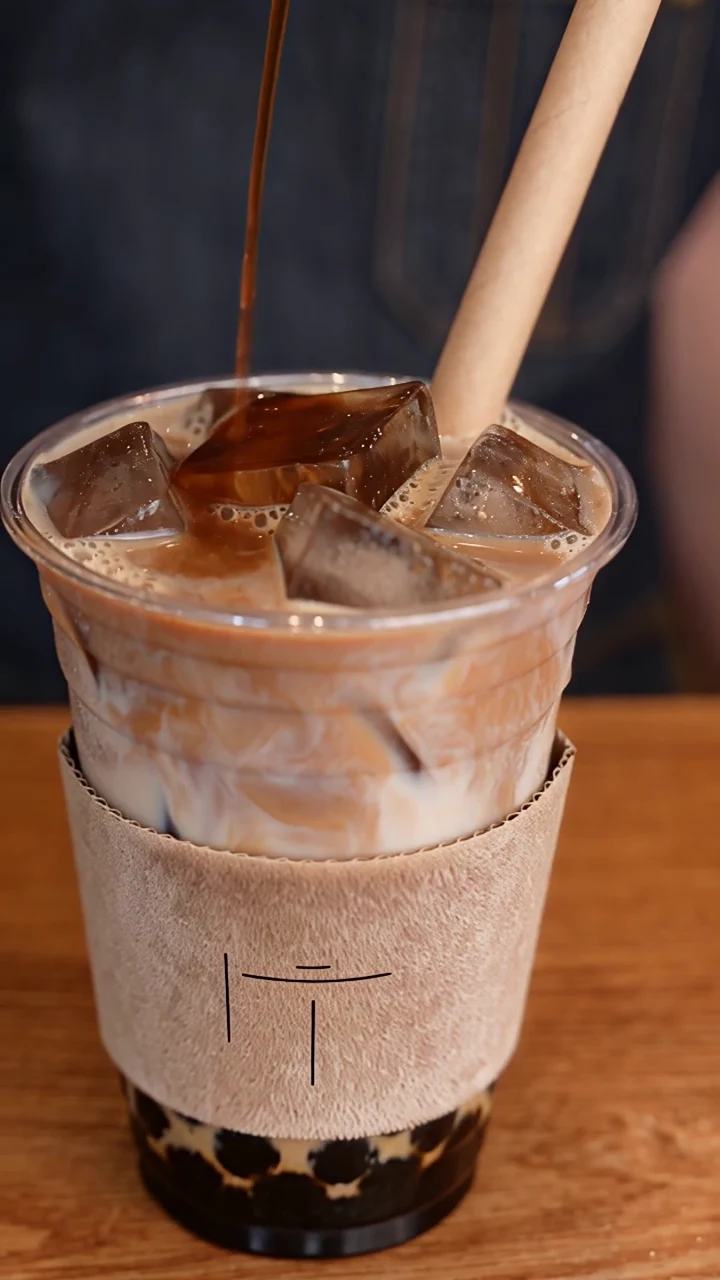
Common problem: If a product detail drifts, decide whether the result can be used before spending on another generation. A retry may have a new quote; do not keep regenerating a whole ad without identifying the specific miss.
The actual remake from this walkthrough
This result is from the recorded internal workflow above, using our owned reference video and fictional milk-tea product image. It is not customer material, a testimonial or evidence of advertising performance.
The full case keeps the reference, product photo, output and review together. Use it to inspect the creative adaptation and remaining differences; it is not a promise that a new generation will match this file or cost.
Download this run’s test record
Tips for better results
- Choose a reference because of its sequence, not because you expect its sales numbers to transfer. A clear opening, a visible demonstration and a complete ending give you a more useful starting point than a long montage.
- Include a product image that shows handling and scale when the reference has a handoff. In this test, the cup’s sleeve and wide straw matter more to identity than matching every background object.
- Keep the first brief specific but short. Name the beats you want to preserve and facts the new film may show. Leave detailed camera and segment instructions to the plan, then check that plan before confirmation.
- Review the soundtrack separately. Silent references can receive library music; references with new product speech can need voice separation. The final mix should support the new product without leaving the old advertisement’s speech underneath.
Troubleshooting
- The reference link cannot be imported
- Check that the video is public and supported. If it still fails, upload an owned or licensed file directly. A URL to an ordinary product page is not a video reference.
- The plan keeps the old product action
- Explain the equivalent action for your product. In this test, coffee pouring becomes milk-tea preparation. Check the revised plan instead of assuming a name change is enough.
- The result is close but a small detail is wrong
- Inspect the original photo, simplify the action and identify the exact mismatch before requesting another generation. Fine text, straws, fingers and reflections need particular attention.