

Amazon sellers
How to make an Amazon main image that wins the click and stays live
On an Amazon search page, your listing gets one small square to make its case before a shopper scrolls past. Amazon’s product image guide says the main image is the one shown in search and browse, which makes the Amazon main image the closest thing you have to an ad that runs on every query, paid or not. It also carries the strictest Amazon main image requirements of any image on the listing, and a version that breaks them can take the whole listing out of search.
Make a new Amazon main image from your product photo. You see the plan and the price before anything is generated.
This guide is about working inside those rules to get more clicks. It covers what the Amazon product photo requirements leave you to play with, which mistakes get a listing suppressed, where secondary images and A+ Content take over, how to test a new main image, and a one-week re-shoot plan for a seller without a studio. The full rule table, with sources, is on our Amazon main image requirements page; everything quoted here comes from Amazon’s own help and program pages, read in October 2026.
Blurbly editorial · · 10 min read
Treat the thumbnail as the ad
Search the main keyword for your product on your phone and screenshot the first two rows. That screen is where your main image does its work, and it is tiny: a square next to a title, a price and a star rating, surrounded by competitors on the same white background. Amazon requires pure white so search and detail pages look consistent, so the background can’t set you apart. Everything that does has to happen inside the outline of the product.
From a thumbnail, a shopper is answering three questions: what is this, is it the version I want, and does it look better made than the one next to it. Shape answers the first, colour and visible parts answer the second, and light, edges and fill answer the third. A product shot straight on in flat light often loses all three, because it reads as a flat silhouette. Turn it a little so the front and one side show, light it so the edges have some depth, and crop until it fills the square.
Then do a squint test on that screenshot. Blur your eyes until the titles are unreadable and see which squares you can still identify. If yours turns into a pale blob next to darker or larger competitors, that is the first thing to fix, before you touch the title or the price.
What the rules leave you to work with
Amazon’s product image guide sets the frame. The main image has to be a realistic image of the product that represents its real scale, quantity and colour, on a pure white background (RGB 255, 255, 255). The product should take up 85% of the image, sit entirely inside the frame and appear once, so no front and back in the same shot. Show one unit plus any accessories that come with it. Props that don’t ship are out, and so are packaging (unless it is part of the product, like a carrying case) and any part of a mannequin. Footwear is a single shoe facing left at a 45-degree angle, and adult clothing goes on a standing model.
On the technical side, files need at least 500 pixels on the longest side to upload at all, and 1,000 pixels or more turns on zoom. JPEG is recommended, with TIFF, PNG and non-animated GIF also accepted. Every image on the listing, main or not, has to match the title and leave out review stars, claims such as free shipping, Amazon logos and badges like “Best seller” or “Amazon’s Choice”.
Read as constraints, that list leaves five things in your hands: the angle, the light, how much of the frame the product fills, which included parts you show, and how true the colour reads. That is where the click is won. Amazon’s advertising guide says much the same from the ad side, asking for at least four images, a plain white background and files of 1,000 pixels or more so zoom works. A short list of product types may use a lifestyle image as the main image; check the Product page style guide for your category before you plan around that.
How a listing gets suppressed, and how to get it back
Amazon checks images when you upload them. Its image suppression page says that if an image doesn’t comply, Amazon may hide the listing from search until you provide a compliant one, or remove or modify the image itself, for example by taking off a watermark. The product image guide adds that when no main image meets the requirements, the listing may be removed from search temporarily. For a small seller that is the most expensive image mistake there is, because the listing stops showing up where shoppers look for it.
The common reasons in Amazon’s suppression table are worth knowing by heart, because several of them are habits carried over from social media:
- Text, a logo, graphics or a watermark on the main image.
- A background that isn’t pure white. Off-white, light grey and a shadow that runs to the edge all count.
- Additional items that aren’t permitted for the product type, or props placed inside, around or over the product.
- A cropped product, or a product still in its packaging or wearing brand or swing tags.
- Blur, pixelation, or a product that is too small in the frame. These three apply to any image, not only the main one.
- For clothing and other softlines: several views in one main image, a mannequin or hanger, a model who isn’t standing, or a human model on a non-clothing product such as shoes, bags, watches or jewellery.
Getting a suppressed listing back into search
To check where you stand, open the Fix tab in Manage Products, which lists products removed from search for image issues. Amazon recommends replacing a non-compliant main image rather than deleting it: upload the new file with the MAIN variant code and allow up to 24 hours for the change to appear. Fix the one reason Amazon gives first, then check the replacement against the rest of the list so you don’t trade one suppression for another.
One line in the help pages is easy to miss: uploading an image doesn’t guarantee it is displayed, because Amazon chooses and arranges images from all the sellers on a product. If you share an ASIN with resellers, a compliant, sharp image is what gives yours a chance of being the one shown.
Winning the click inside the rules
Say you sell a stainless steel lunch box with a bamboo lid and a small sauce pot that ships inside it. The obvious main image is the closed box, front on. A stronger one is a three-quarter view from slightly above with the lid lifted a few centimetres, so the bamboo, the steel and the depth of the box all read in one thumbnail. The sauce pot can sit beside it because it comes in the box. A fork, a napkin or food can’t, and food inside the box is exactly the kind of prop inside the product that Amazon’s suppression table names. Crop so the box runs nearly edge to edge on its longest side, which is how you reach 85% fill without guessing.
A few other levers stay within the rules:
- Colour accuracy. If you sell five colours, each variant needs a main image in its own colour, and Amazon’s advertising guide asks you to show the variations. A navy that photographs as black disappoints the buyer who chose navy, and Amazon lists fewer returns from mismatched expectations as a reason to get images right.
- Edges and shadow. A soft contact shadow under the product gives it weight. Keep it well inside the frame so the outer edge of the image stays at pure white.
- Scale from the product itself. With no props allowed, size has to come from details shoppers recognise, such as a handle, a cable or a cap. Pick the angle that shows them.
- Detail at zoom. Export well above the 1,000-pixel zoom threshold, for example 2,000 pixels square, so the zoomed view shows texture. Start from a large original; Amazon’s guide says not to enlarge small images artificially, and enlarging adds pixels, not detail.
Secondary images and A+ Content do different jobs
Once the main image has earned the click, the rest of the listing has to earn the sale. Amazon’s image guide recommends at least six additional images and one video. The text-and-graphics suppression reason is listed against main images only, which is why sellers use the other slots for callouts, dimension drawings and comparison shots. The rules for every image still apply there: no review stars, no shipping claims, no Amazon badges, and each image must match the title.
A useful way to plan those six is one buyer question per slot: what it does, how big it is, what comes in the box, how it is used, which detail shows the quality, and how it compares across your own sizes or colours. Our product listing image generator plans the set that way, slot by slot, from your own product photo. The GPT Image 2 Amazon listing prompts page shows six tested prompts for those slots next to their raw outputs, failures included.
A+ Content sits further down the page. Basic A+ appears in the product description section, and the brand story runs in a separate “From the brand” section. Amazon’s A+ guide describes it as a tool for brand owners and authorised resellers, the modules are wide banners (970 × 300 for basic, 1,464 × 600 for Premium) rather than squares, and the guide asks for content that doesn’t duplicate the image gallery. It also rules out promotional language, pricing, shipping details and comparisons with competitors, while encouraging comparison charts across your own products. Use A+ for the reasons to pick your brand and for the cross-sell, and keep the core proof in the gallery, which shoppers reach first.
Testing a new main image with Manage Your Experiments
Swapping a main image and comparing this month with last month tells you little, because prices, ads, season and competitors all move at the same time. Amazon’s Manage Your Experiments tool is the cleaner option if you qualify. Shoppers who view your detail page are split at random into groups that each see a different version, and the results show units sold, sales, conversion rate, units sold per unique visitor and sample size, plus a projected one-year impact for the winner. It can test product images, titles, bullet points, descriptions and A+ Content.
The entry bar is real. You need a Professional selling account and the Brand Representative role for a brand enrolled in Brand Registry, and the product must have had enough traffic in recent weeks to produce a valid result. Amazon recommends 8 to 10 weeks if you set your own duration. The default setting runs until there is enough data to call a winner, sometimes in about four weeks, and then publishes the winning version automatically.
If you qualify, test one idea at a time: angle against angle, a tighter crop against a looser one, lid on against lid off. Two images that differ in five ways can produce a winner without teaching you anything for your next product. If you don’t qualify yet, make the change once, note the date, and hold price and ad budgets steady for a few weeks so the before and after are at least comparable.
A one-week re-shoot plan for a small seller
You don’t need a studio for this, but you do need to work in order, because the checks at the end are what keep the listing live.
- Day 1, audit. Run your current main image through the Amazon main image checker. In your browser, it measures the longest side, the file type, whether the outer edge is pure white and roughly how much of the frame the product fills.
- Day 2, competitor grid. Screenshot the first search rows for your two main keywords on your phone and write down what your thumbnail has to show that the others don’t.
- Day 3, shoot or generate. Photograph the real unit on a white sweep near a window, or generate from your sharpest photo. Make several angles, including the one you want to test.
- Day 4, clean and size. Lift the background to pure white and keep shadows off the edges. The product image resizer pads a photo to 2,000 × 2,000 pixels on pure white without uploading it anywhere.
- Day 5, compare and upload. Put a real unit next to the screen and check the label, colour and parts, then upload with the MAIN variant code and look at the listing on your phone a day later.
If the images are AI-generated, check them like a supplier’s files
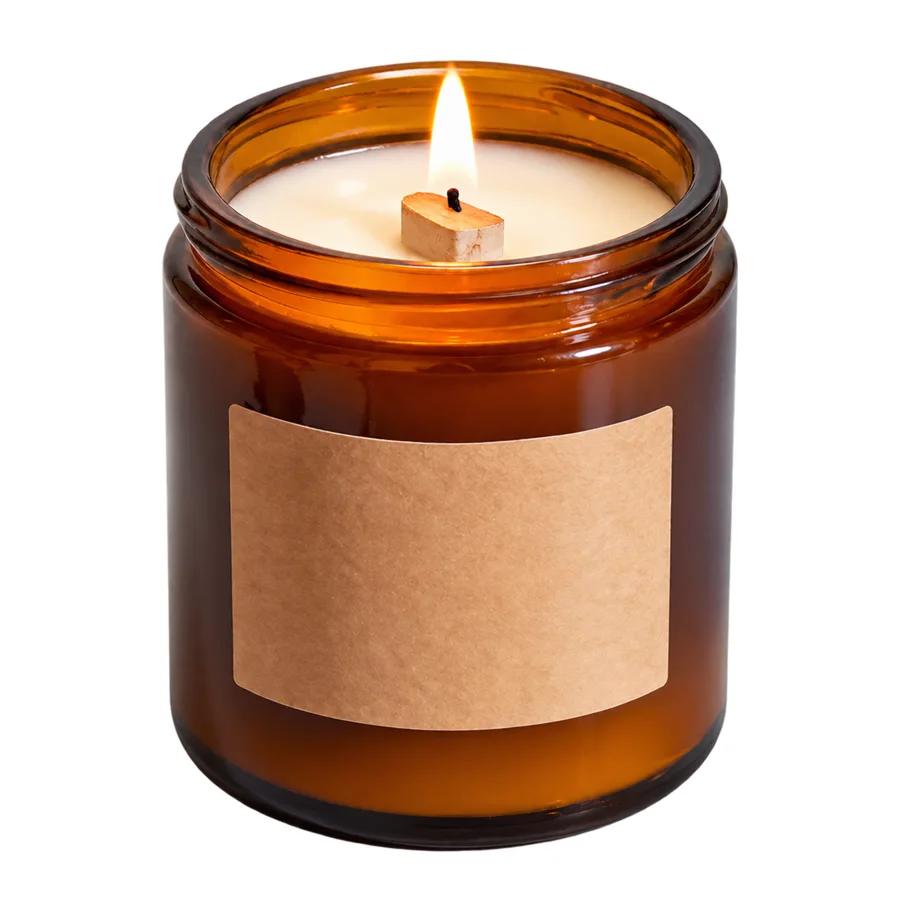
Generated images save a shoot, and they still need the same scrutiny as files from a photographer you have never met. In Blurbly’s own candle test, the raw generations failed the white-background and fill checks, the export that finally passed needed an outside background cutout and a white pad, and its wick still came out thicker than the real candle’s. In our GPT Image 2 listing test, the main image came back slightly grey. A pixel check catches the background. Only you, holding the product, can catch the wick.
One more rule applies only when people appear in an image. If an image shows a photorealistic person who was entirely generated by AI, Amazon’s image guide asks you to add the keyword contains-synthetic-performer to the file’s dc:subject (XMP) metadata with an IPTC-compatible editor before you upload, so Amazon can show a disclosure where it applies. Product-only images and real people retouched with AI tools don’t need it.